Processing Data with Variable Input Workflows¤
Introduction¤
This tutorial shows how you can create and use data integration workflows to process data coming from outside Corporate Memory (i.e., without registering datasets). This is achieved with the Allow replacement flag on input and/or output datasets. This flag is supported by most file dataset types. A replaceable dataset is created and used inside a workflow as an input for other tasks (e.g., a transformation).
The workflow is then called with the actual payload via an HTTP REST call or via cmemc.
This allows you to solve all kinds of ☆ Automation tasks where you need to process lots of small data snippets or similar.
Tutorial
The complete tutorial is available as a Marketplace Package. You can install this package
- by using the web interface ( Packages → Search → “Variable Input”) or
-
by using the command line interface
1 Install the required Ontologies / Vocabularies¤
This tutorial makes use of the rdfs: and schema.org ontologies.
Both can be installed from the Marketplace.
Click the Packages icon in the main menu under the Marketplace section.
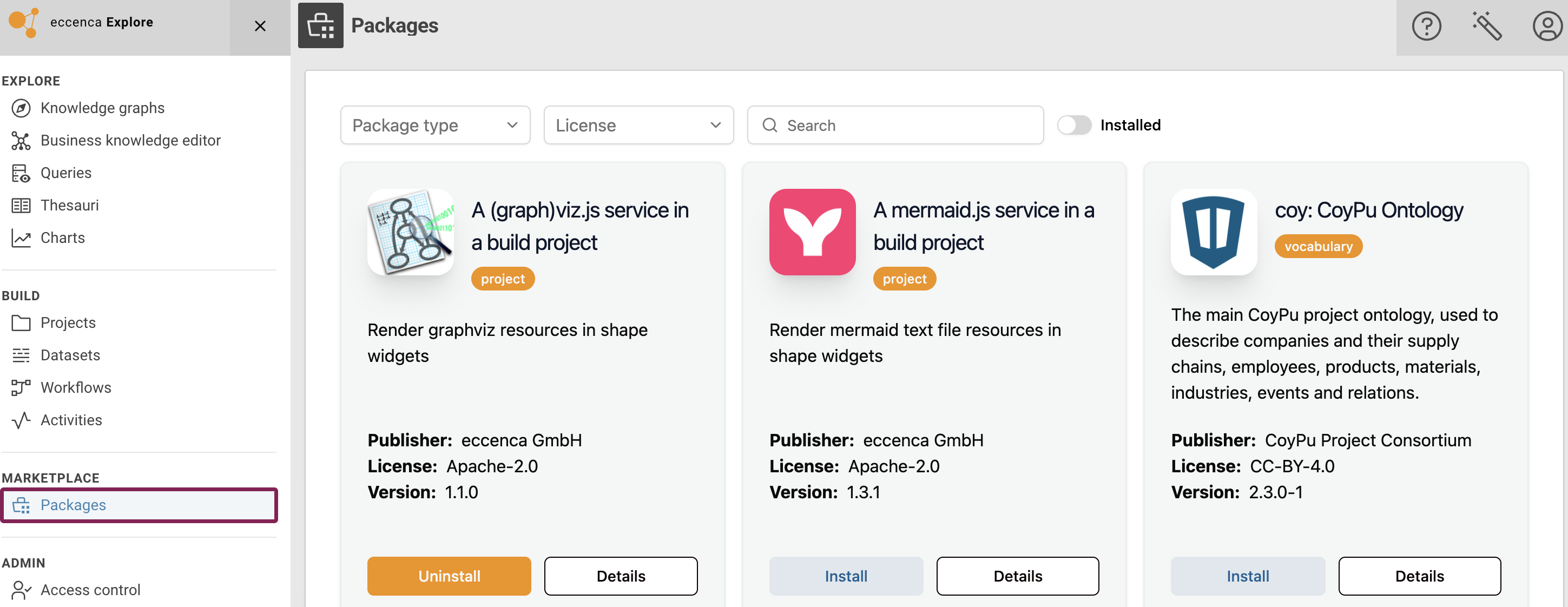
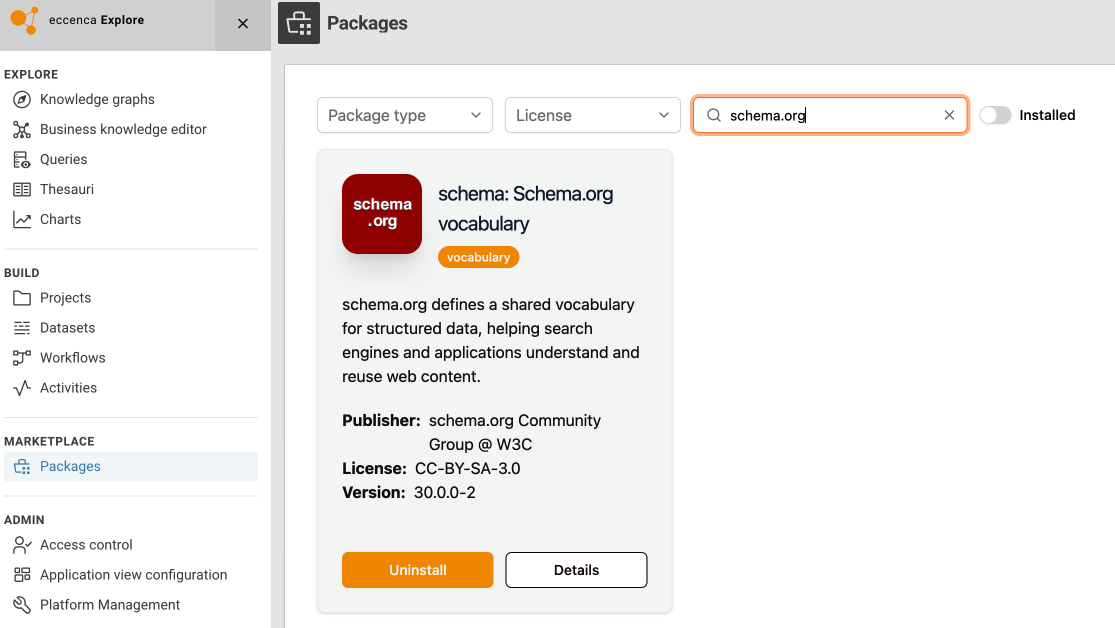
Search for the required ontologies / vocabularies and click the Install button. Wait for a package installation to complete (the Install button will change to Uninstall) before installing the next package.
2 Create a new project¤
Click the Projects icon in the main menu under the Build section. Then click on Create new in the top right corner to create a new project.
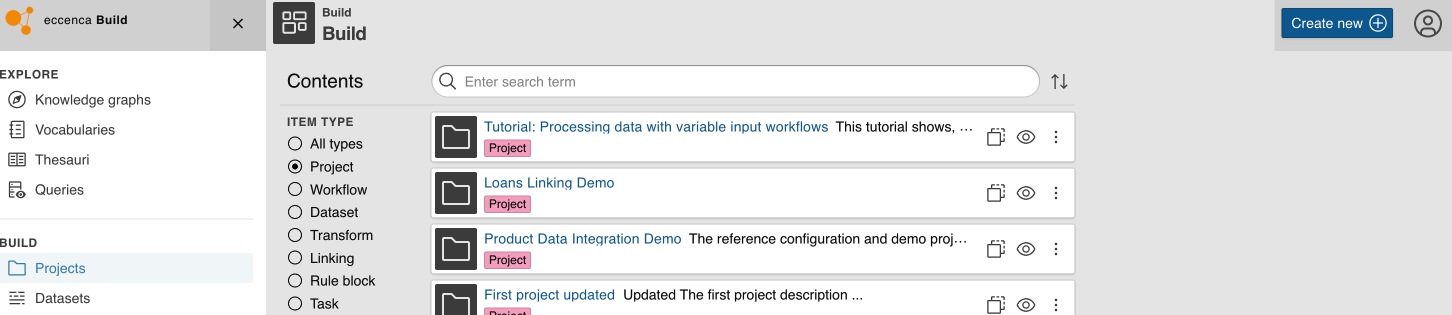
Click on Project in the Create new item dialog, then click Add.
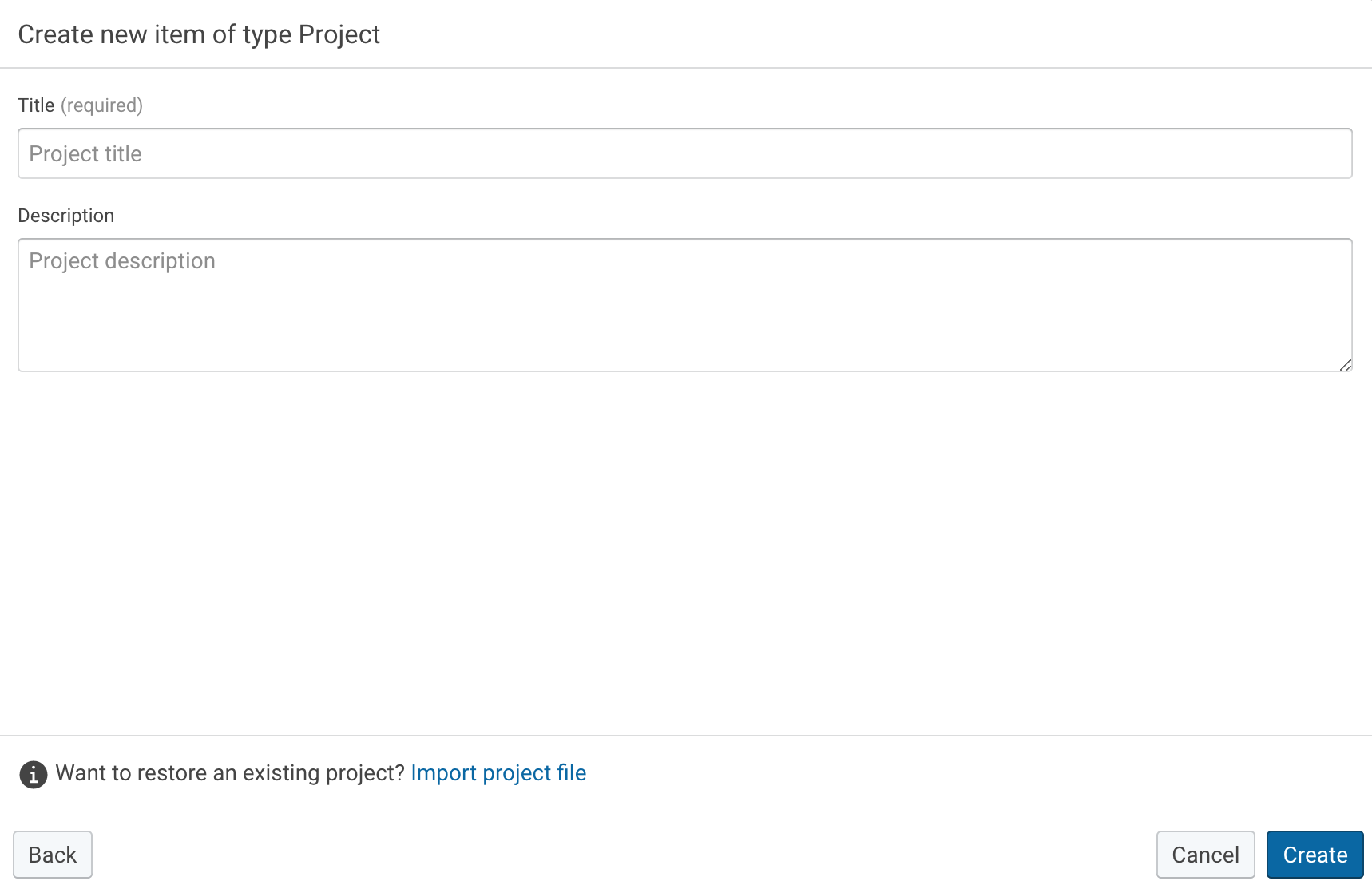
Provide it with a Title and Description. In this example we will use:
- Title:
Variant Configuration Demo Project - Description:
This project contains a workflow that transforms excel files with variant configuration data into a knowledge graph.
Then click on Create.
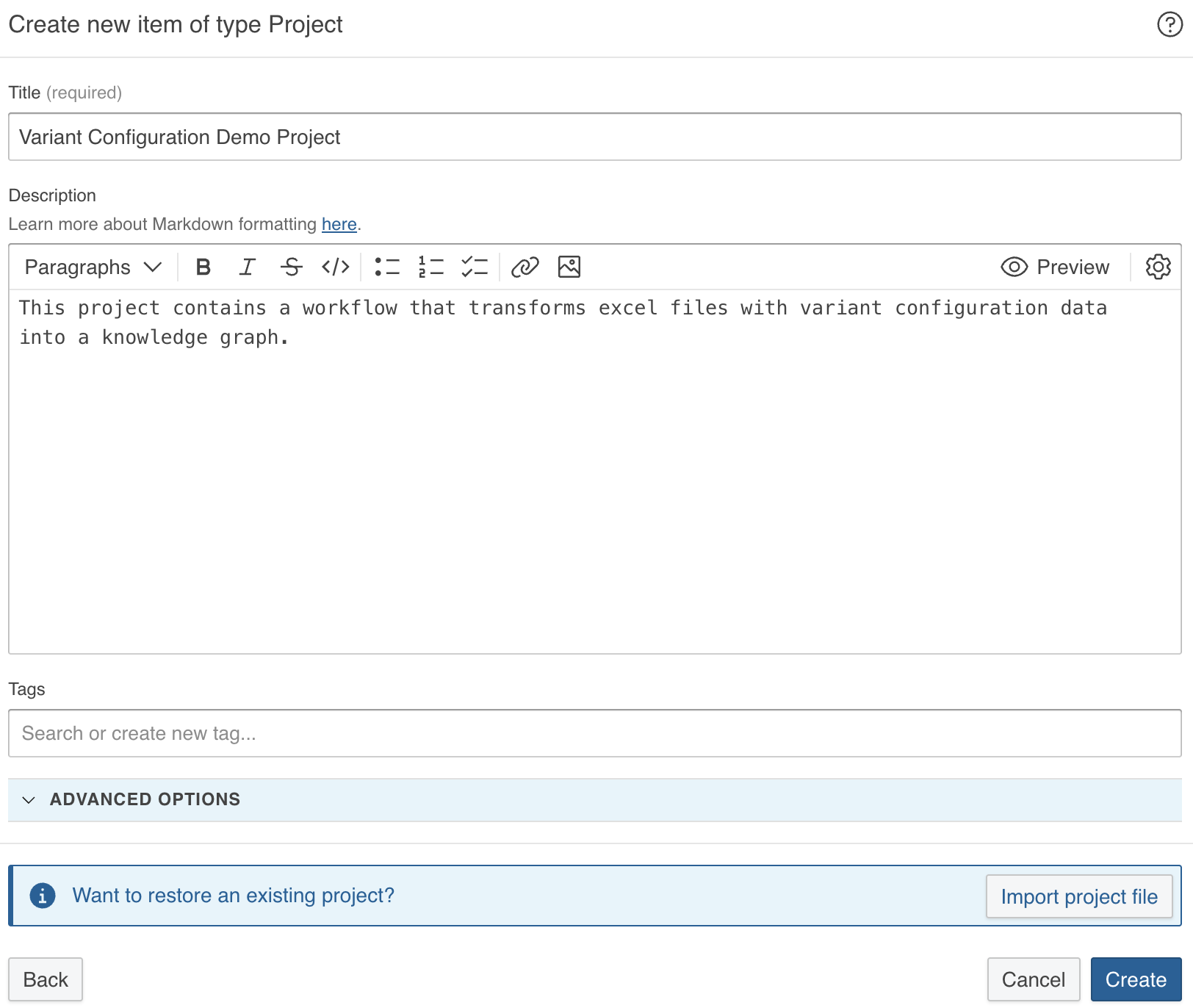
The project will include everything you need to build a workflow for extracting Feed XML data, transforming it into RDF, and loading it into a Knowledge Graph.
3 Create and populate the workflow¤
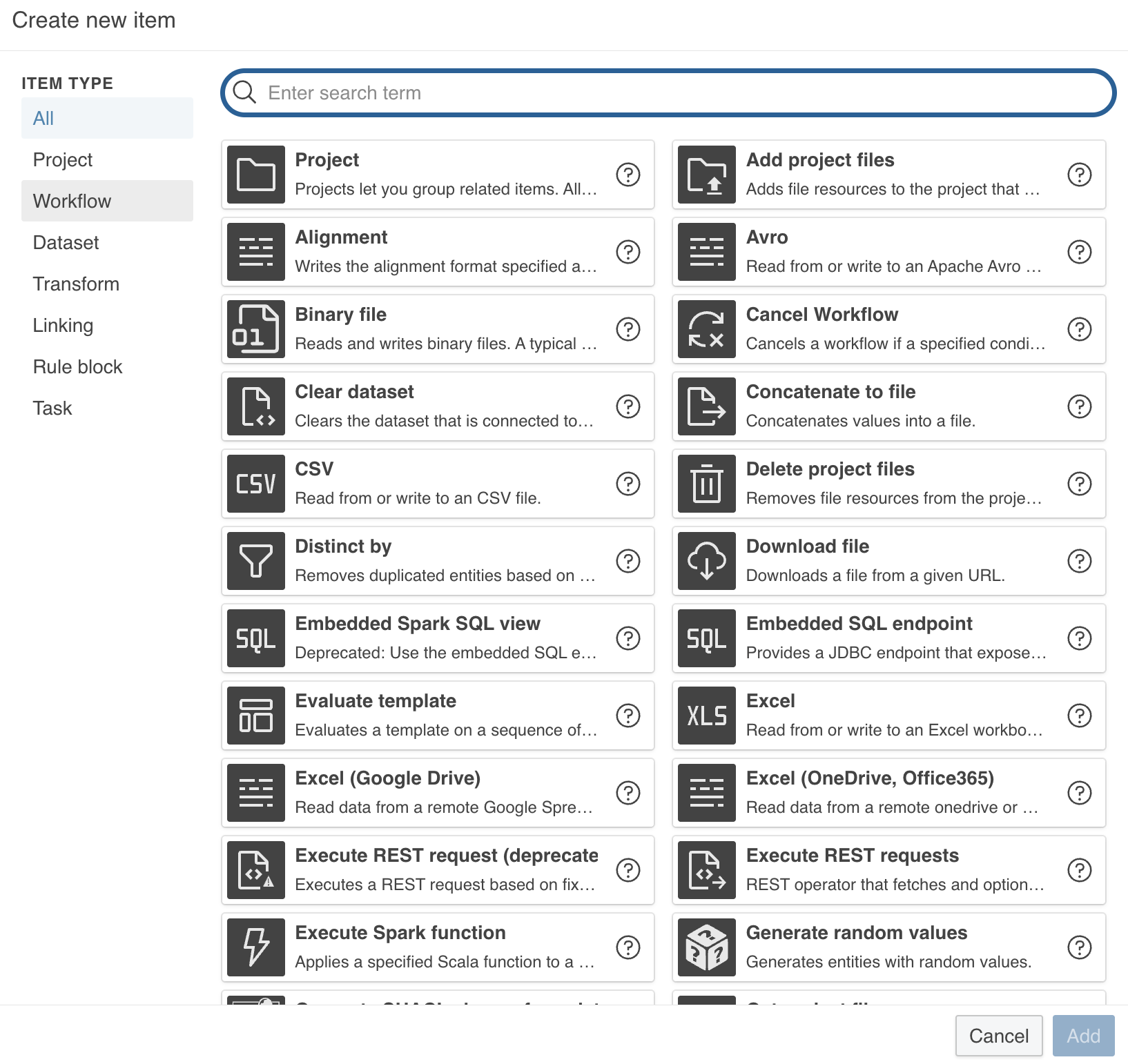
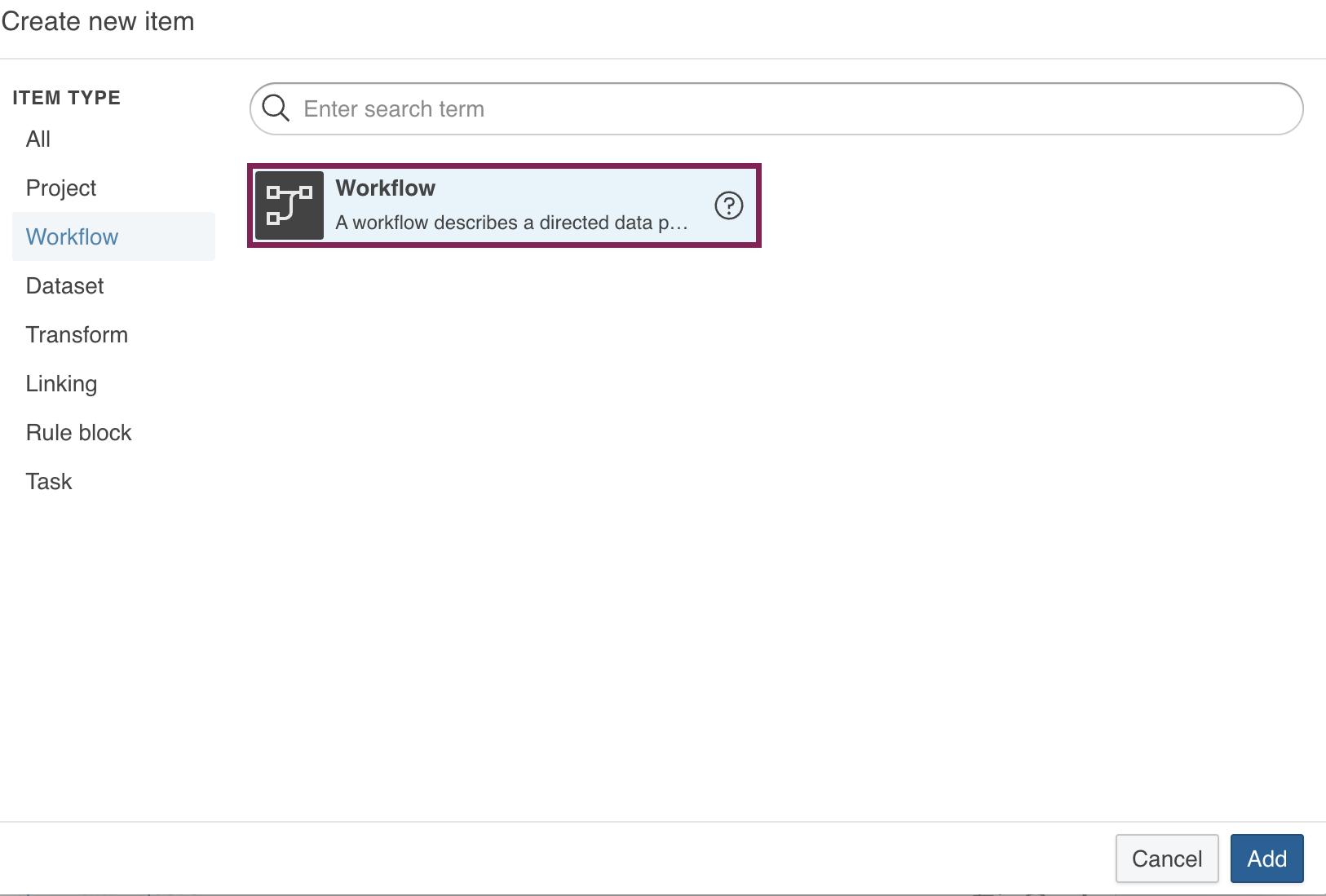
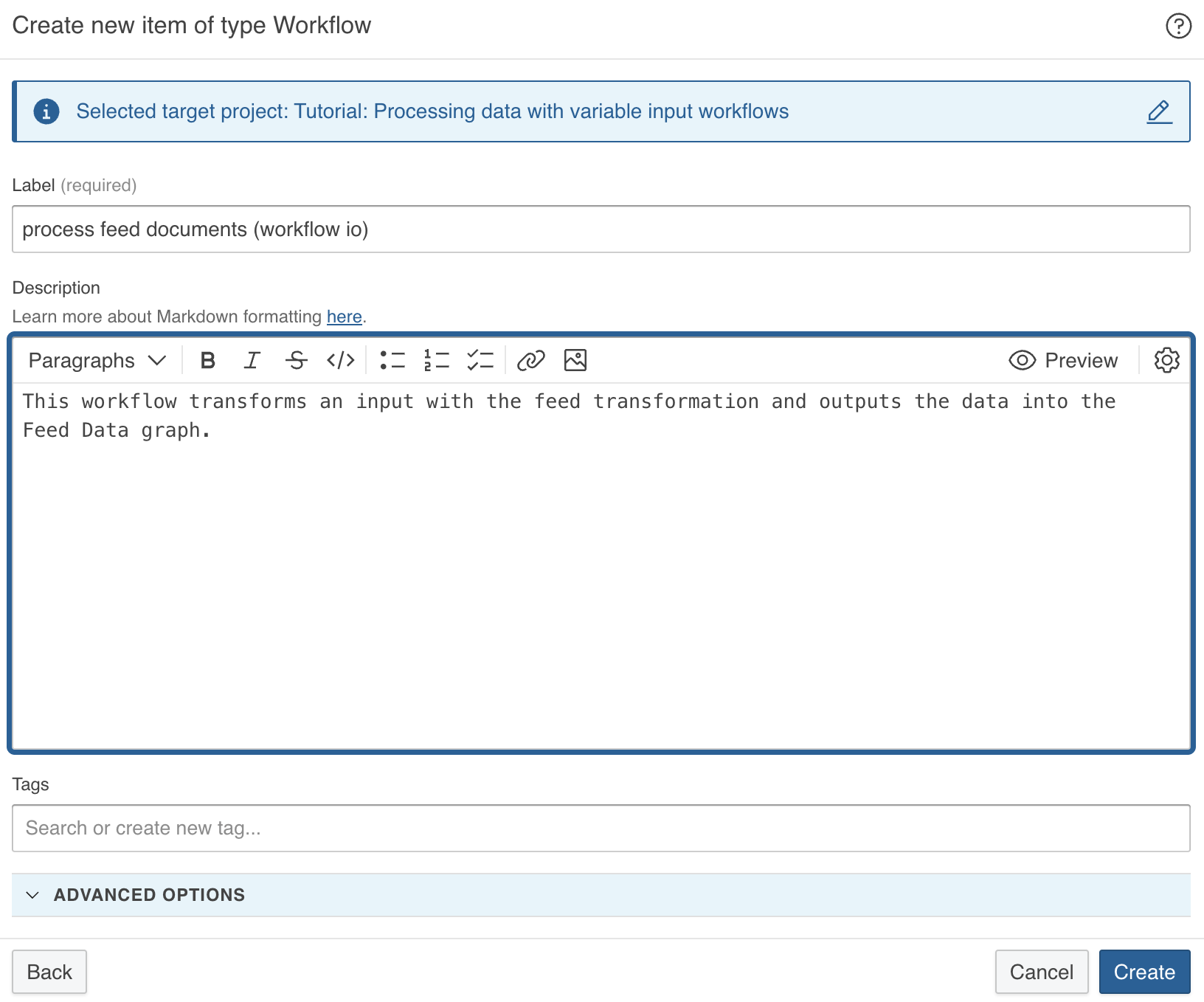
Click on Create new in the top right corner to create a new workflow. Click on Workflow under the section ITEM TYPE, then click on Workflow and Add.
Provide it with a Label and Description. In this example we will use:
- Label:
process feed documents (workflow io) - Description:
This workflow transforms an input with the feed transformation and outputs the data into the Feed Data graph.
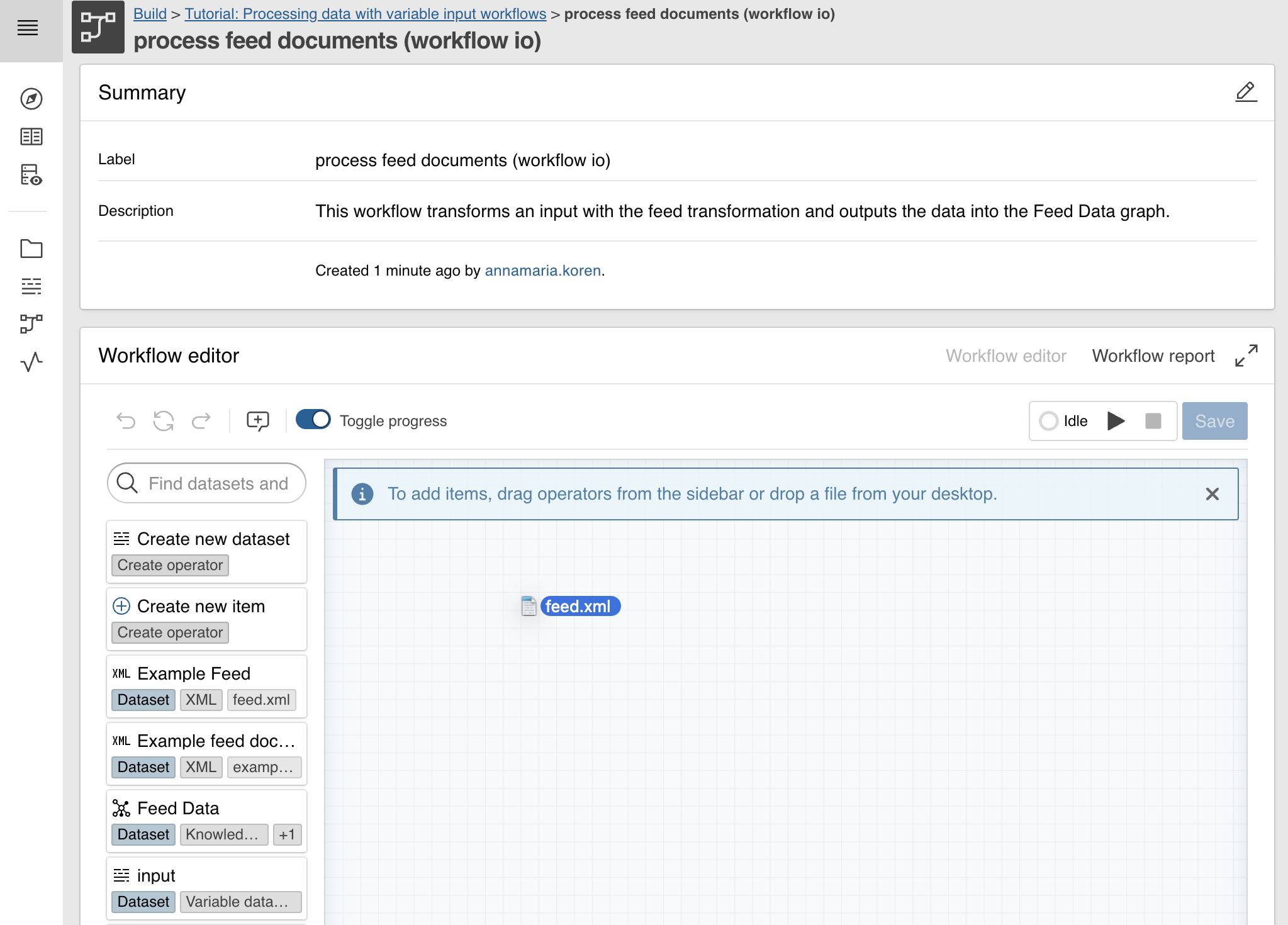
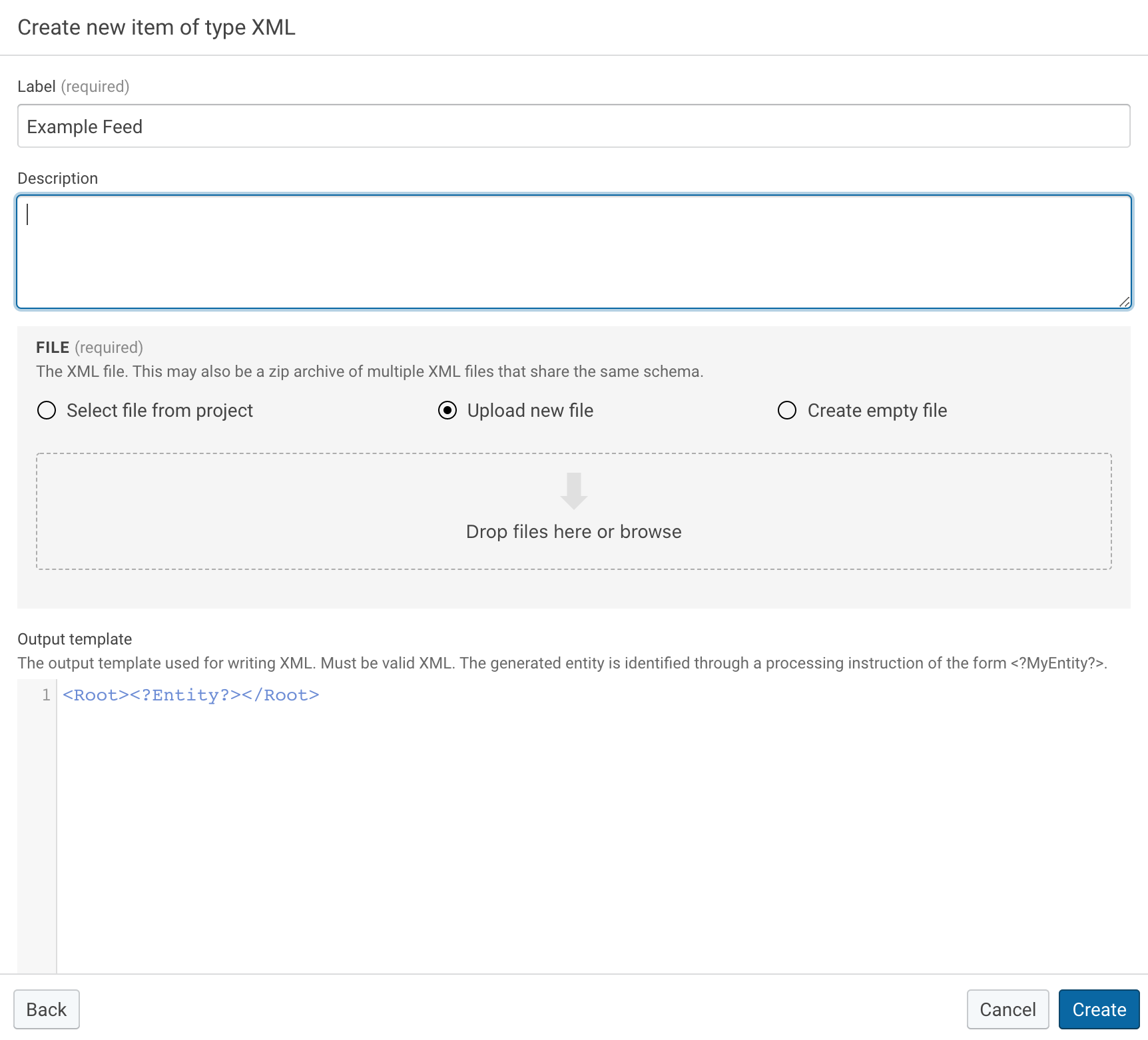
Add the XML dataset (feed data) into your project via drag-and-drop. In this tutorial we use this file: feed.xml(1)
- Original feed source was:
https://www.ecdc.europa.eu/en/taxonomy/term/2942/feed
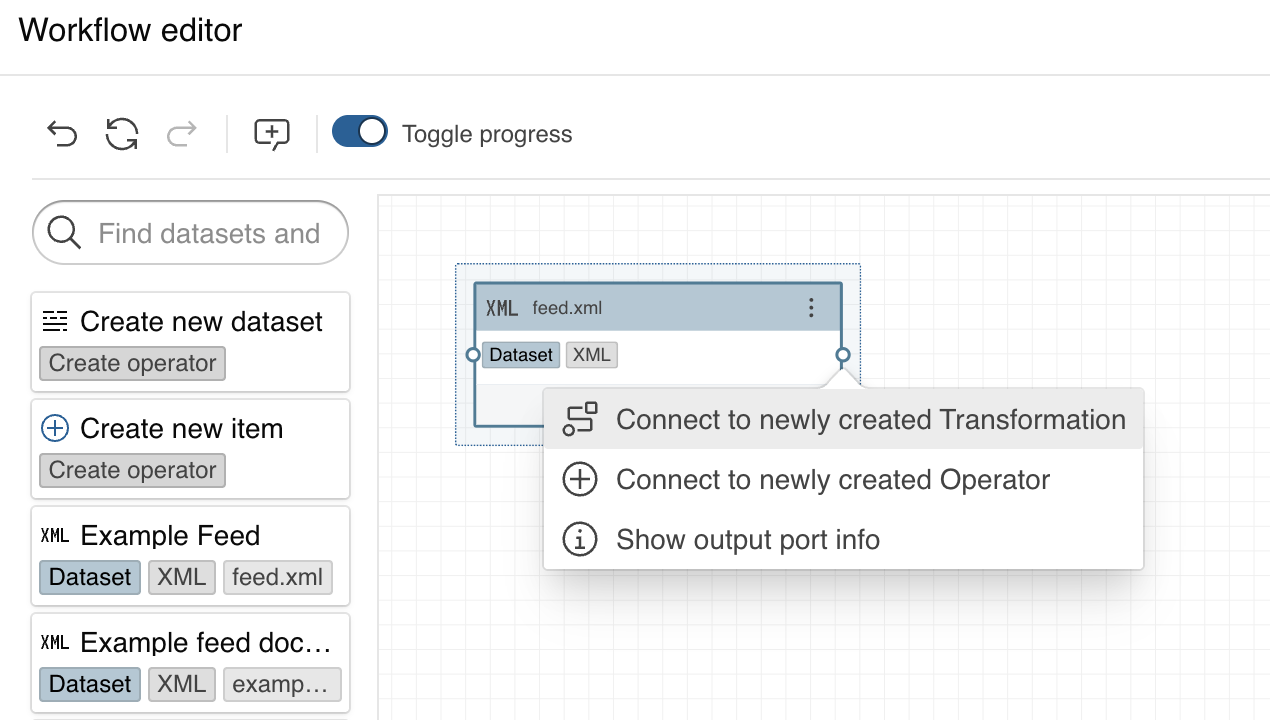
Click the output port menu of the feed.xml dataset task. And click Connect to newly created Transformation.
If necessary change the details in the create dialog, complete by clicking the Create button.
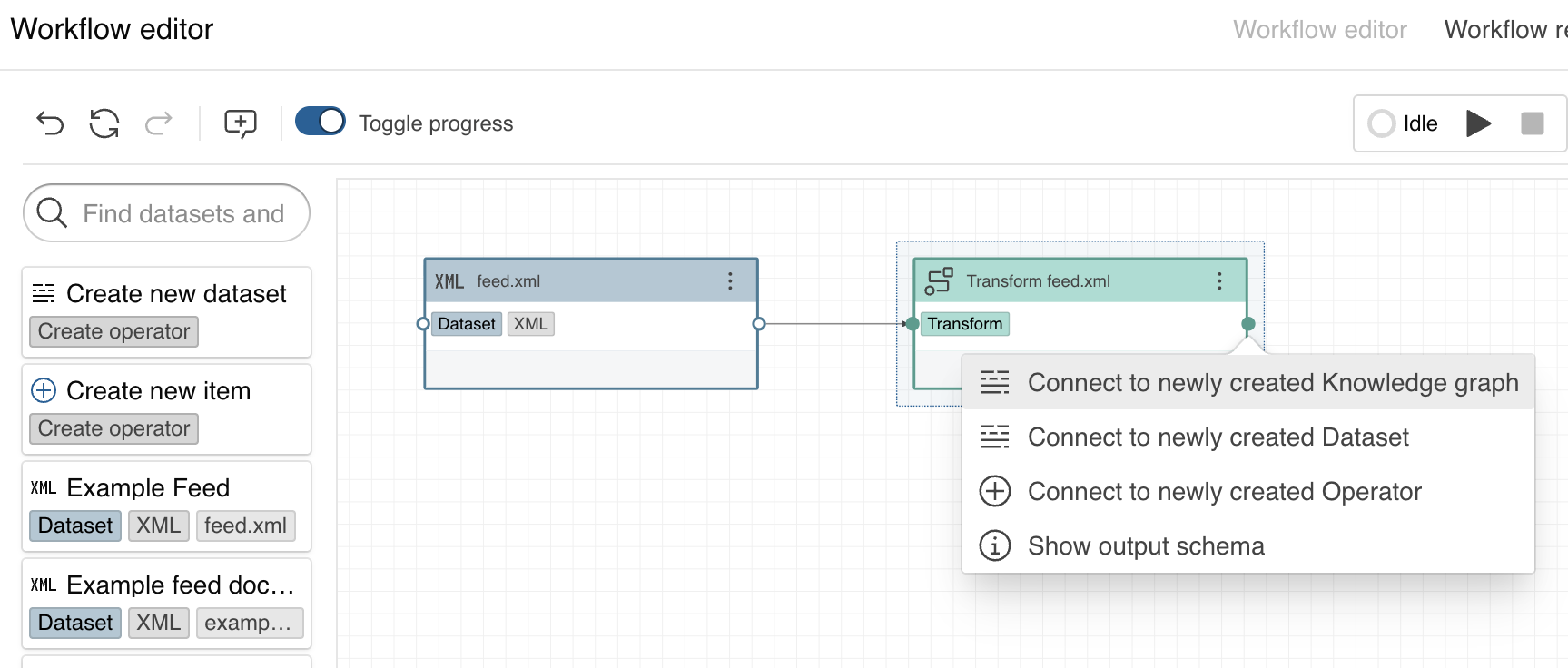
Click the output port menu of the Transform feed.xml transformation task. And click Connect to newly created Knowledge graph.
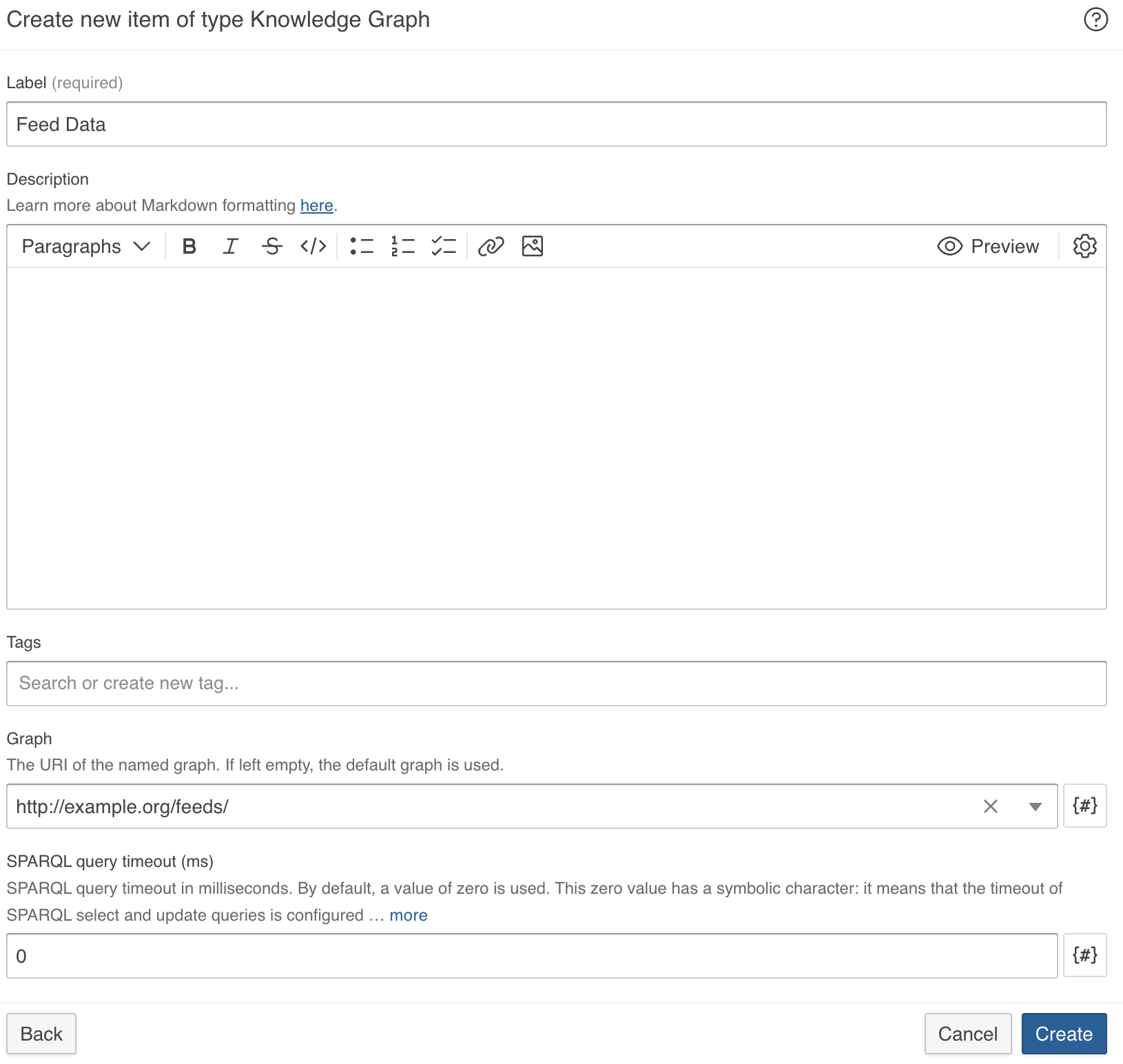
Customize the Label and provide Graph IRI. In this example we will use:
- Label:
Feed Data - Graph:
http://example.org/feeds/
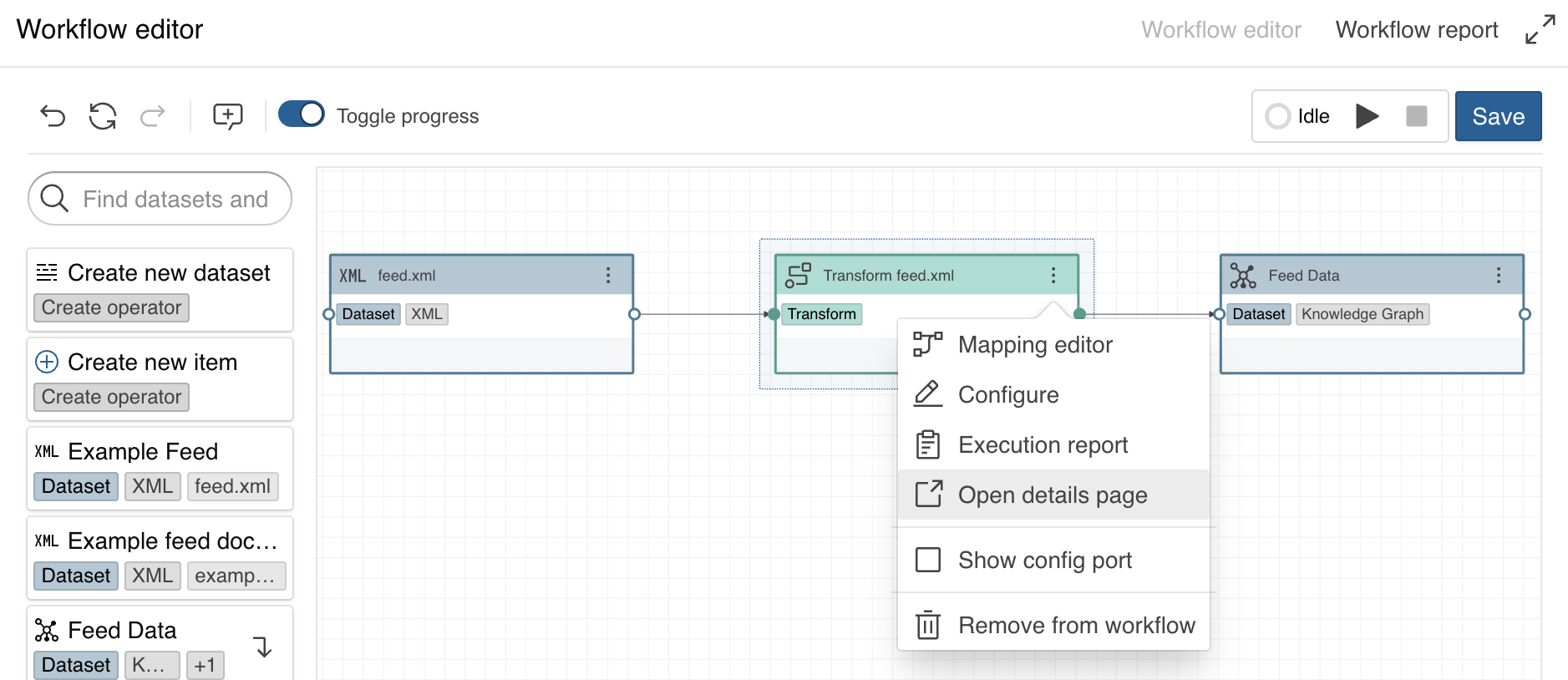
Save the workflow.
4 Create the feed transformation¤
Based on the added sample feed XML Dataset, create a mapping to generate RDF triples.
Click Open details page in the Transform feed.xml transformation task context menu to open the transformation editor in a new browser tab (use Mapping editor to open the transformation editor in a modal dialog).
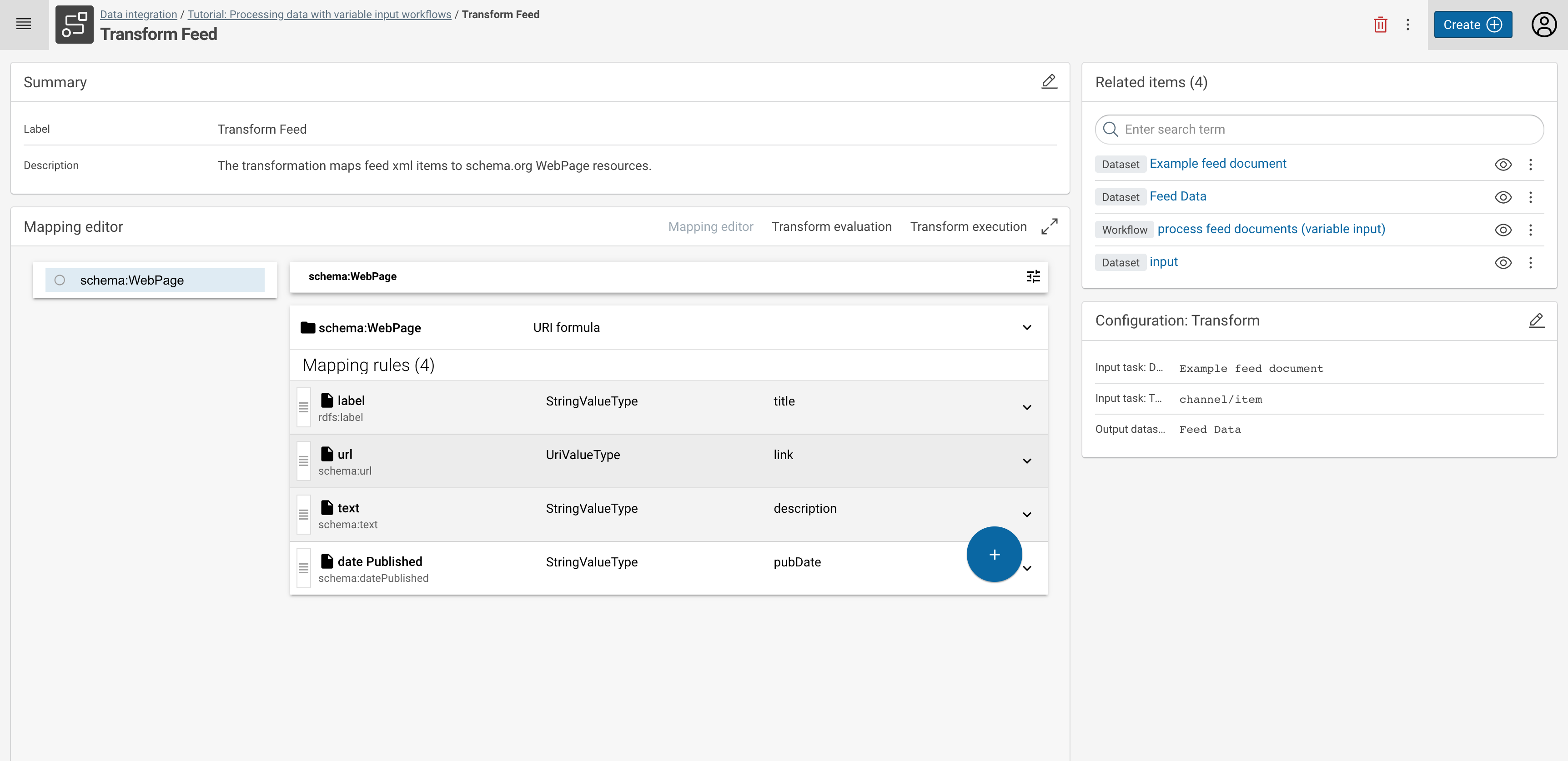
The screenshot provides an example mapping to generate WebPages, which includes a label, a URL, a text, and the date they were published in the feed. The mappings are based on classes and properties defined by the Schema.org and RDFS vocabulary.
In case you need help with mapping data from XML to RDF, feel free to visit your respective tutorial: Lift data from JSON and XML sources.
5 Allow input dataset replacement¤
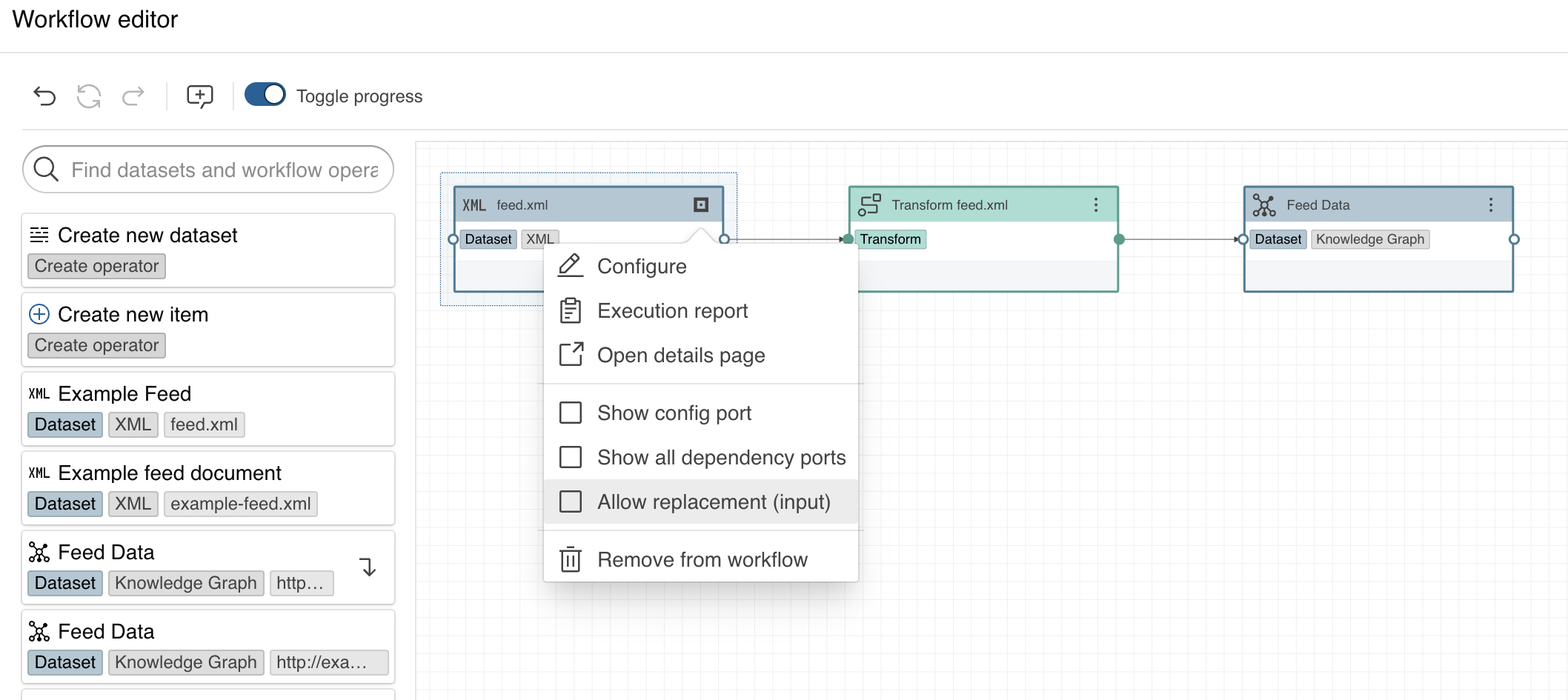
Activate the Allow replacement flag in a datasets` context menu by activating the Allow replacement option.
6 Use cmemc to feed data into the workflow¤
Finally, you can process all the feeds you want by executing the created workflow with a dynamic XML payload.
For this, you need to use the workflow io command:
You can easily automate this for a list of feeds like this:
$ cat feeds.txt
https://feeds.npr.org/500005/podcast.xml
http://rss.cnn.com/rss/cnn_topstories.rss
https://lifehacker.com/rss
http://feeds.bbci.co.uk/news/rss.xml
…

# fetch the list of urls one by one and feed the content to the corporate memory workflow
$ cat feeds.txt | xargs -I % sh -c '{ echo %; curl -s % -o feed.xml; cmemc workflow io varinput:process-feed -i feed.xml; rm feed.xml; }'
https://feeds.npr.org/500005/podcast.xml
http://rss.cnn.com/rss/cnn_topstories.rss
https://lifehacker.com/rss
http://feeds.bbci.co.uk/news/rss.xml
…
7 Explore the fetched Knowledge Graph¤
In EXPLORE > Knowledge graphs, you can study the ingested feed data.