Application view¤
An Application view determines which modules are available in the Corporate Memory user interface. The Application view configuration module lets you select the Application view you work in, configure its details, and create or delete Application views.
Select an Application view¤
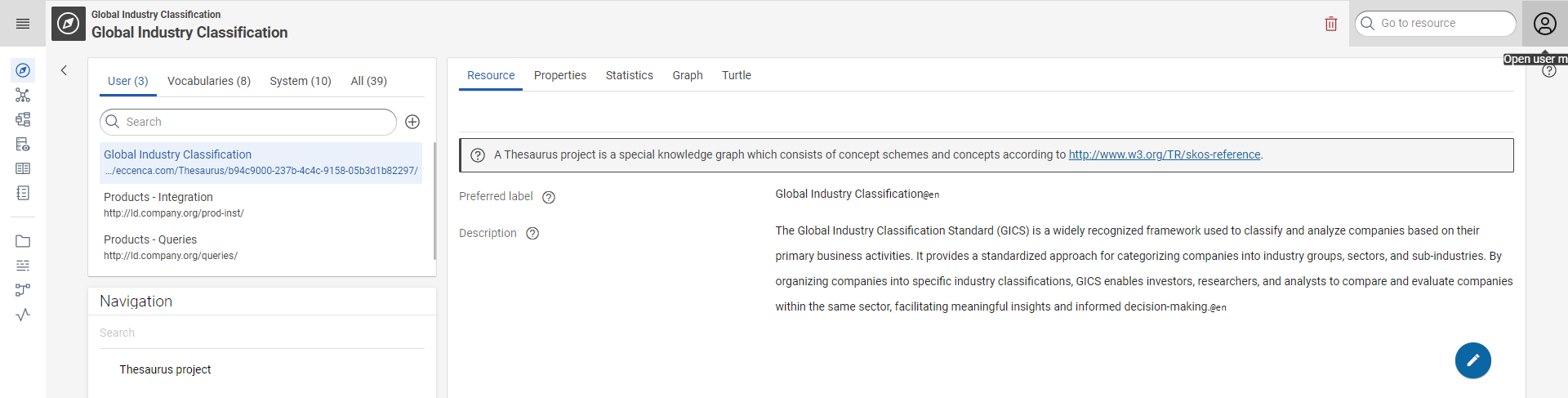
To select an Application view click on the user icon in the top right corner.
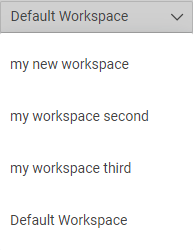
Click the drop-down list and click the Application view you want to open.
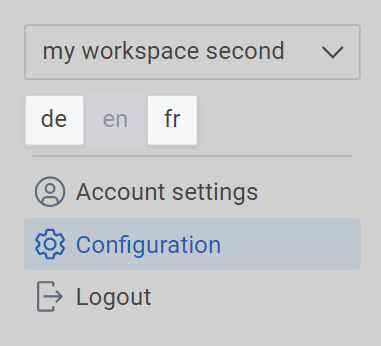
Configure an Application view¤
Click the Application view configuration icon in the main menu.
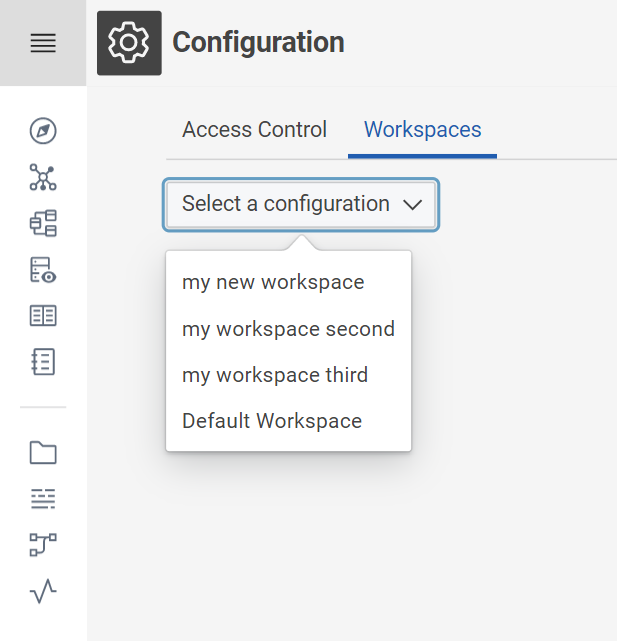
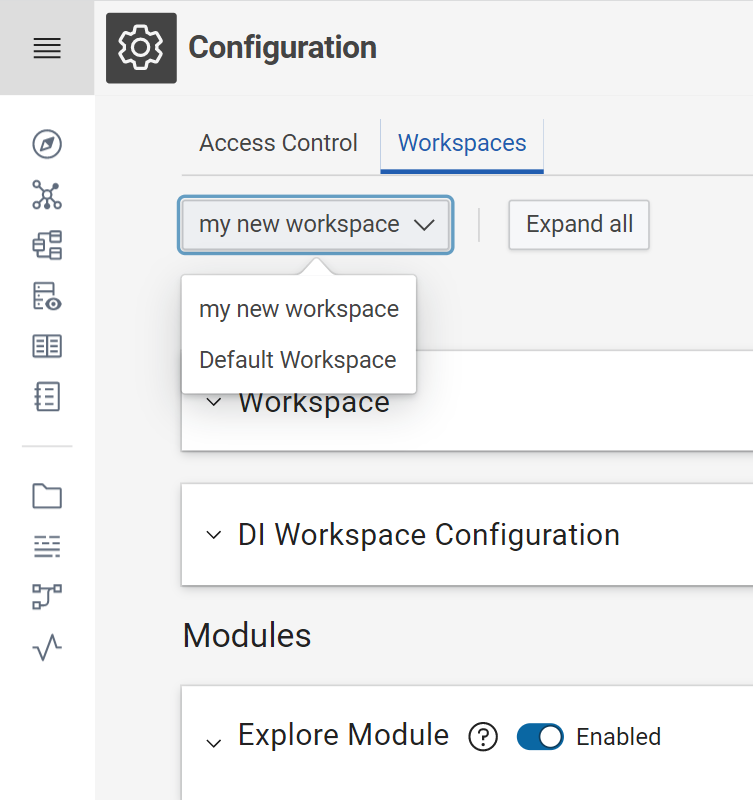
Select the Application view from the dropdown menu to configure.
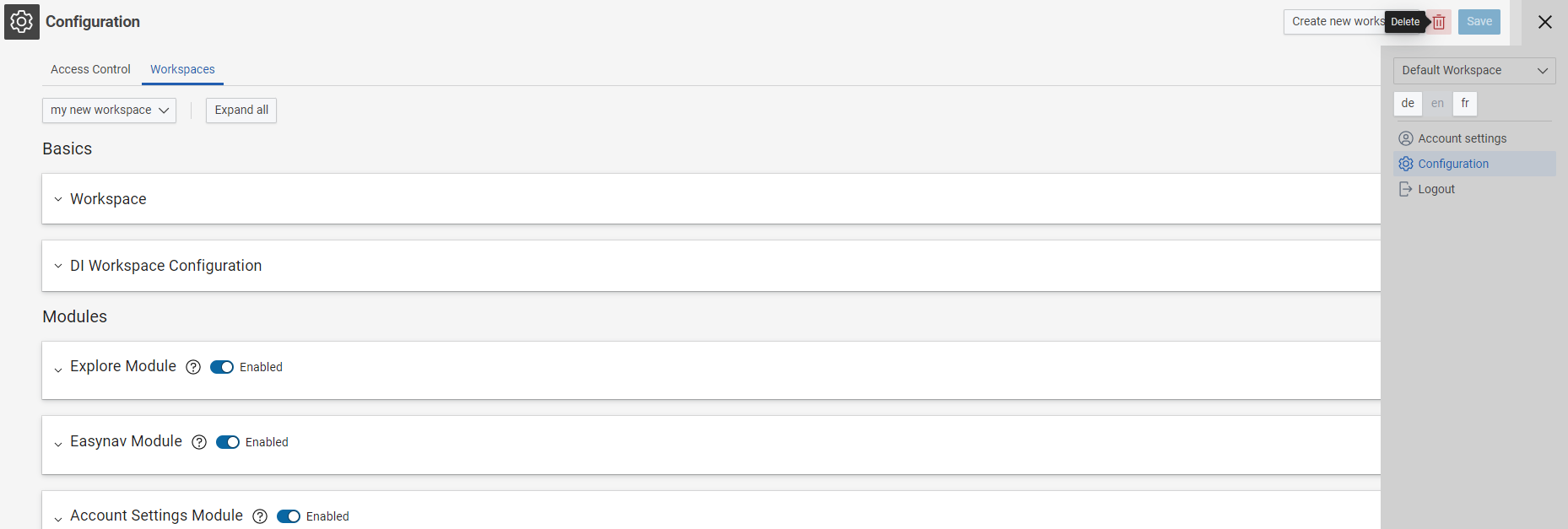
Click the down arrows to expand the sections to configure the details as shown below (like Application view or Build configuration).
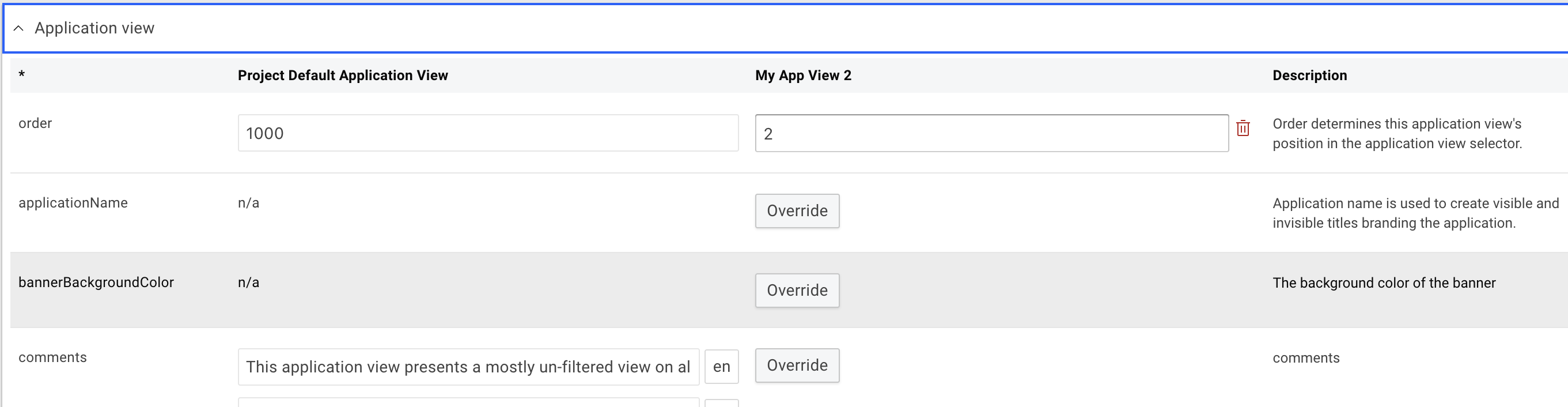
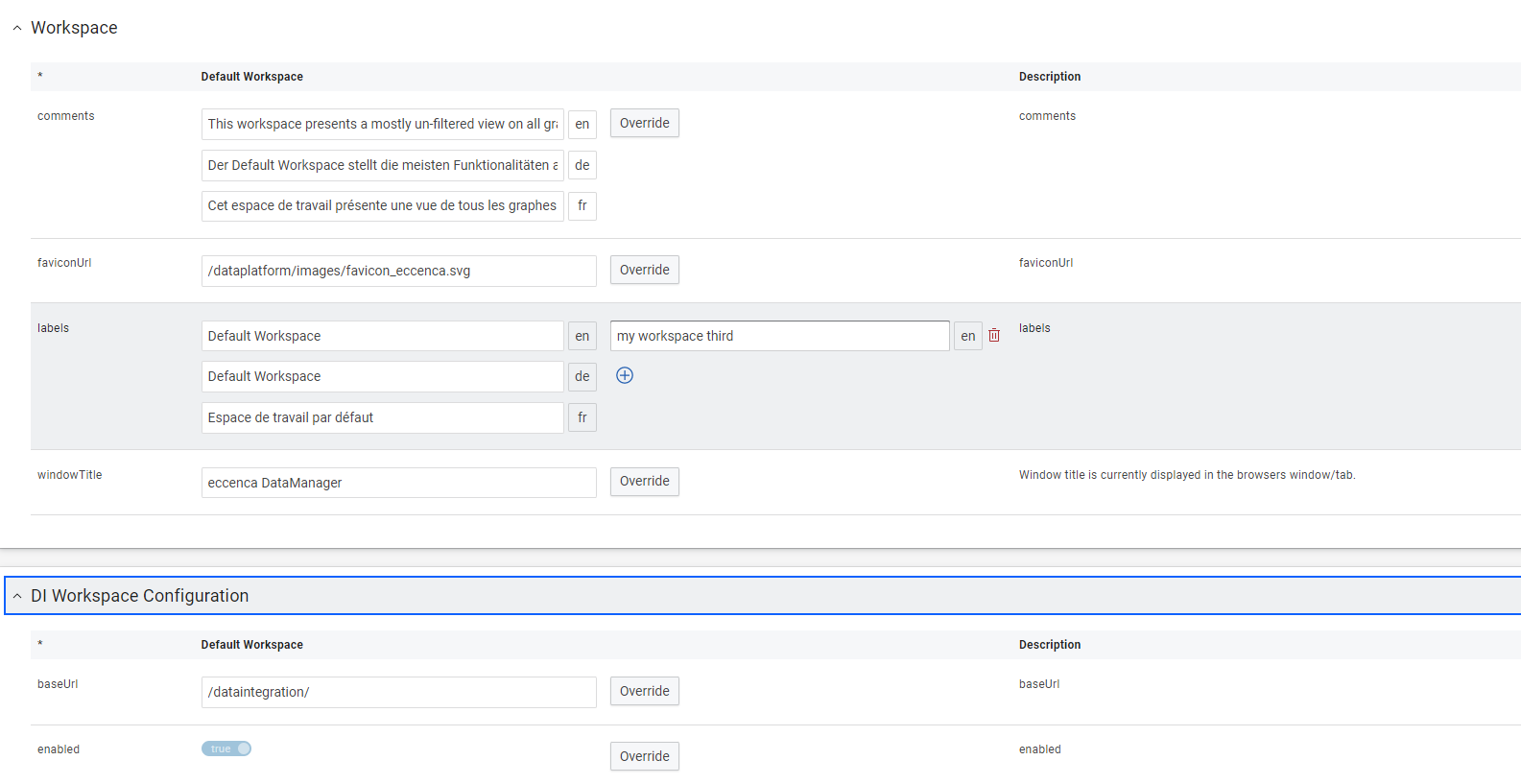
Add an Application view¤
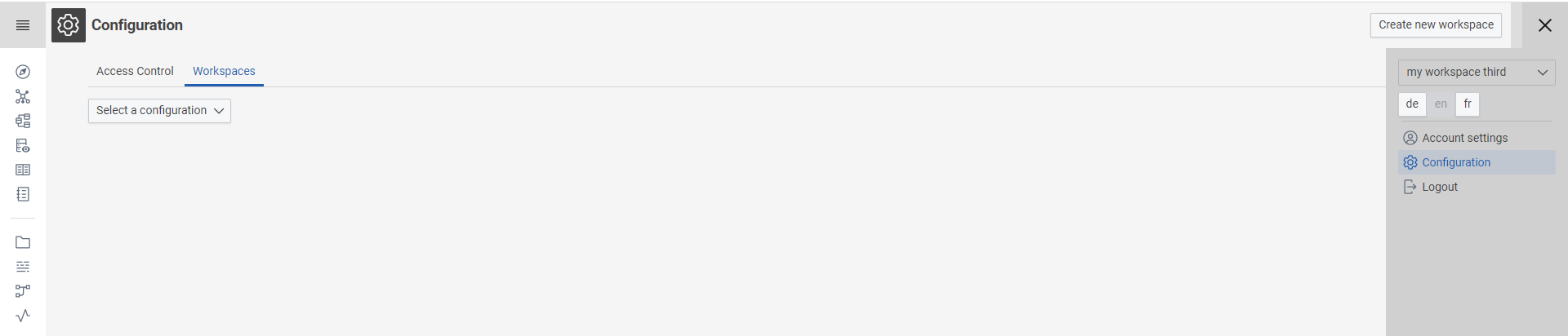
Click on Application view configuration icon in the main menu then click on Create new application view
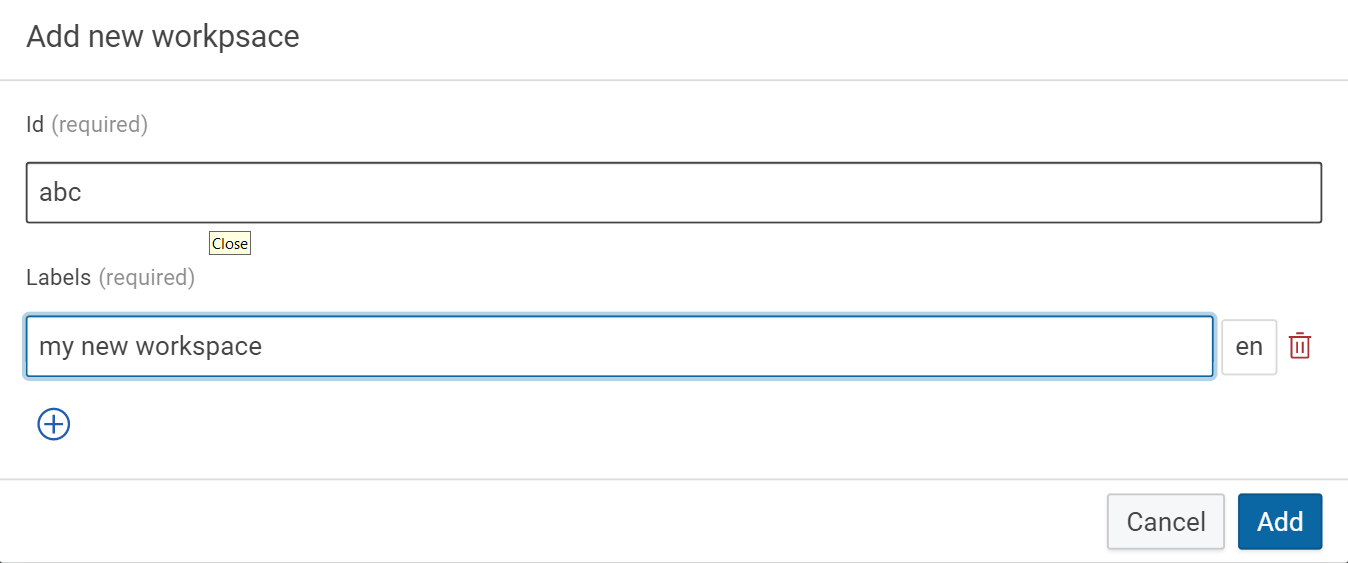
Type the Id and Label name then click on Add
Delete an Application view¤
Click on Application view configuration icon in the main menu then click on Application view

Select the Application view from the drop-down you want to delete
Click on the Delete Icon on the right side of the page.
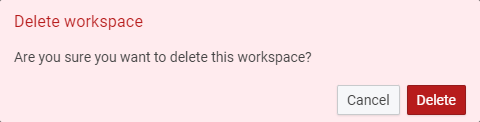
Click on Delete
Note
When you delete an Application view, no graphs or Build projects are deleted.