Marketplace¤
Introduction¤
The Marketplace is the place in eccenca Corporate Memory where you find ready-made content and add it to your instance: ontologies and vocabularies, taxonomies, data graphs, Build projects, query catalogs, as well as complete demo and solution setups.
All of this content is delivered as Marketplace Packages. A package is a single, versioned artifact which bundles everything belonging to a solution, together with the packages and plugins it depends on. Instead of collecting and importing graphs and projects one by one, you install a package, and Corporate Memory places all its contents where they belong.
Packages are offered by a Marketplace Server, a central repository your Corporate Memory instance is connected to. The public Marketplace Server operated by eccenca is available at https://eccenca.market.
Availability
The Marketplace is available starting with eccenca Corporate Memory version 26.1.
In order to open the Marketplace and to install or uninstall packages, your user account needs the :Marketplace-Frontend action, plus access to the graphs a package writes to.
If the Packages entry is missing from the navigation menu, or if the Install and Uninstall buttons do not react, contact your Corporate Memory administrator.
See Access Conditions for details.
Open the Marketplace¤
To open the Marketplace:
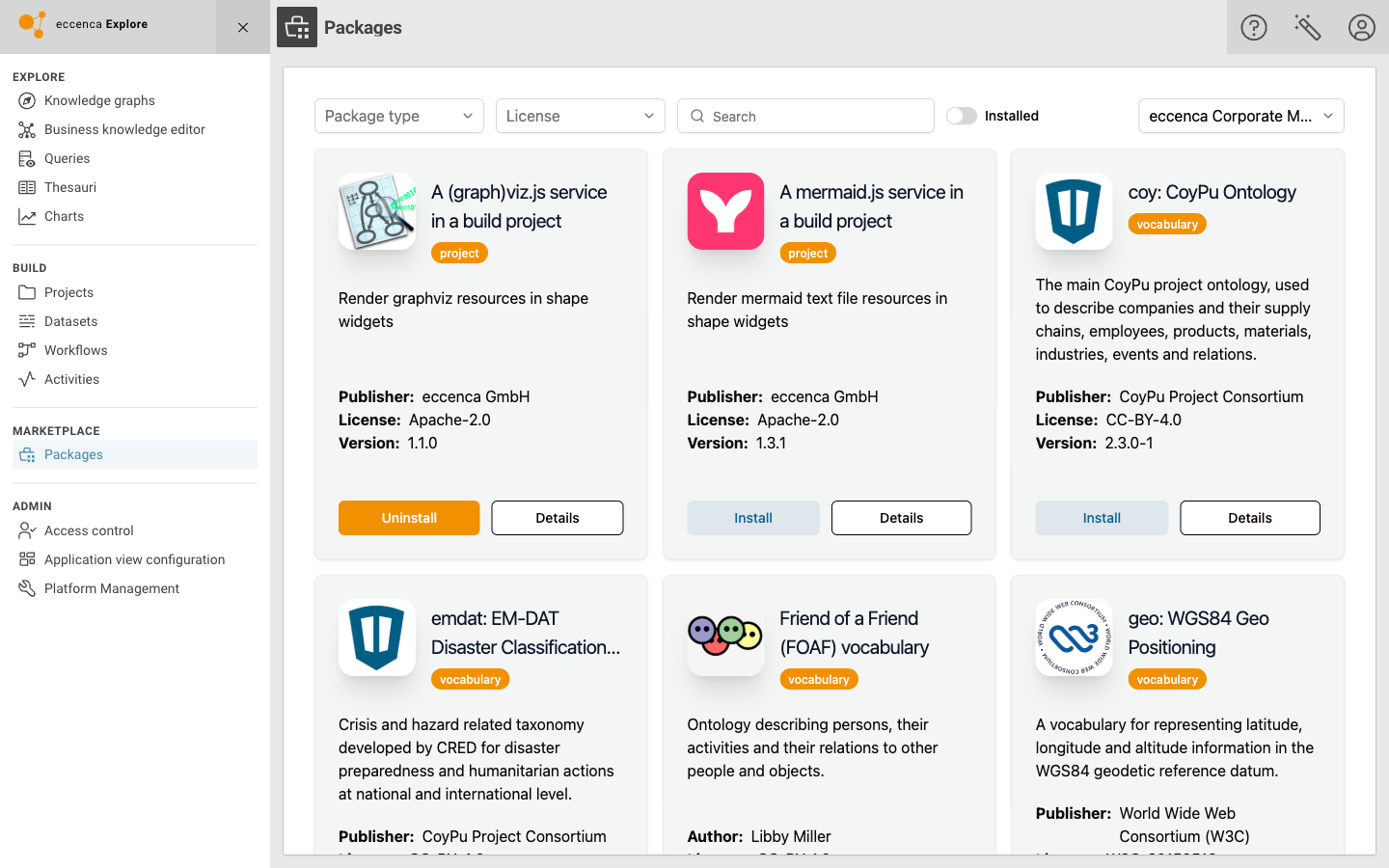
- Click Open main navigation in the header.
- Click Packages in the MARKETPLACE group.
Discover Packages¤
The overview page lists all packages offered by the selected Marketplace, and marks the ones already installed in your instance with an Uninstall action.
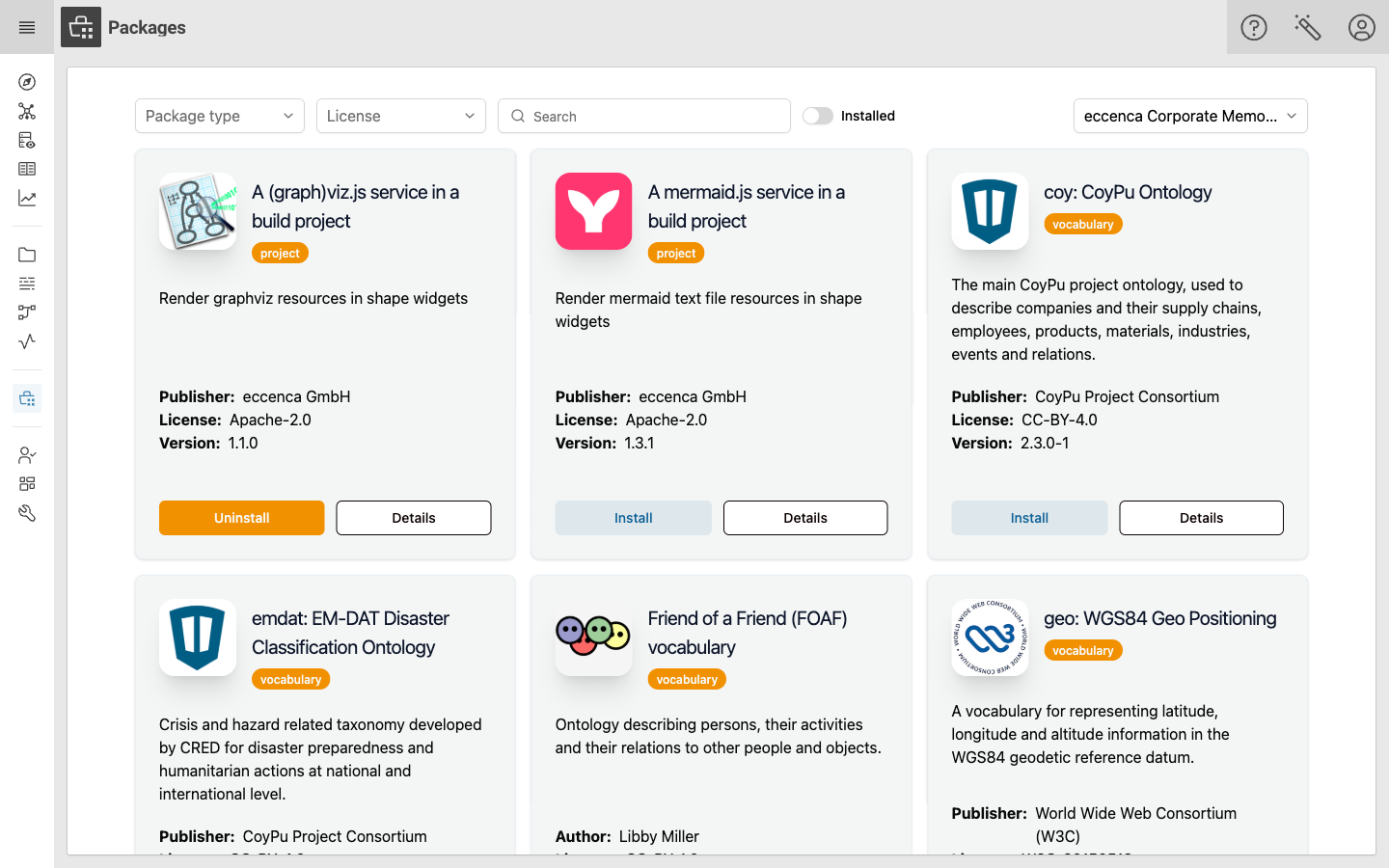
Each package is shown as a card with
- the package icon, name and description,
- a badge stating the package type (
vocabularyorproject), - the publisher or author, the license and the version, and
- the actions Install or Uninstall, and Details.
Filter and Search¤
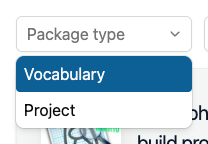
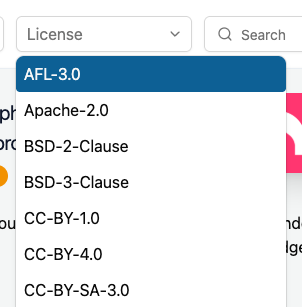
Use the controls above the package list to narrow down what is shown. They can be combined.

Search¤
Show only packages whose name or description contains the entered keyword.
Marketplace (top right)¤
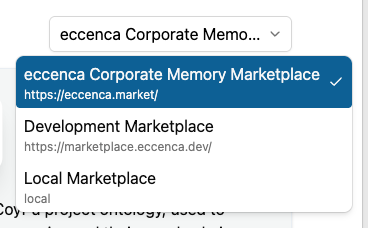
Select which Marketplace you work with. The drop-down lists all Marketplaces configured for your Corporate Memory instance with their name and URL, and the package list shows the packages of the selected one. It is inactive if only one Marketplace is configured.
If nothing matches, the page states No packages match the current filters. Reset the controls to see the full list again.
Package Types¤
vocabulary- Packages which contribute vocabulary / ontology content, such as
rdf:,org:orsso:. Such a package can contain several vocabularies as well as the matching SHACL shapes. project- Packages which can ship any kind of content, mainly Build projects, (instance / data) graphs, SHACL shapes, workspace configuration and query catalogs. Demo and solution packages are of this type.
Inspect a Package¤
Click Details on a package card to open the package details page. Use it to check what a package contains and what it pulls in before you install it.
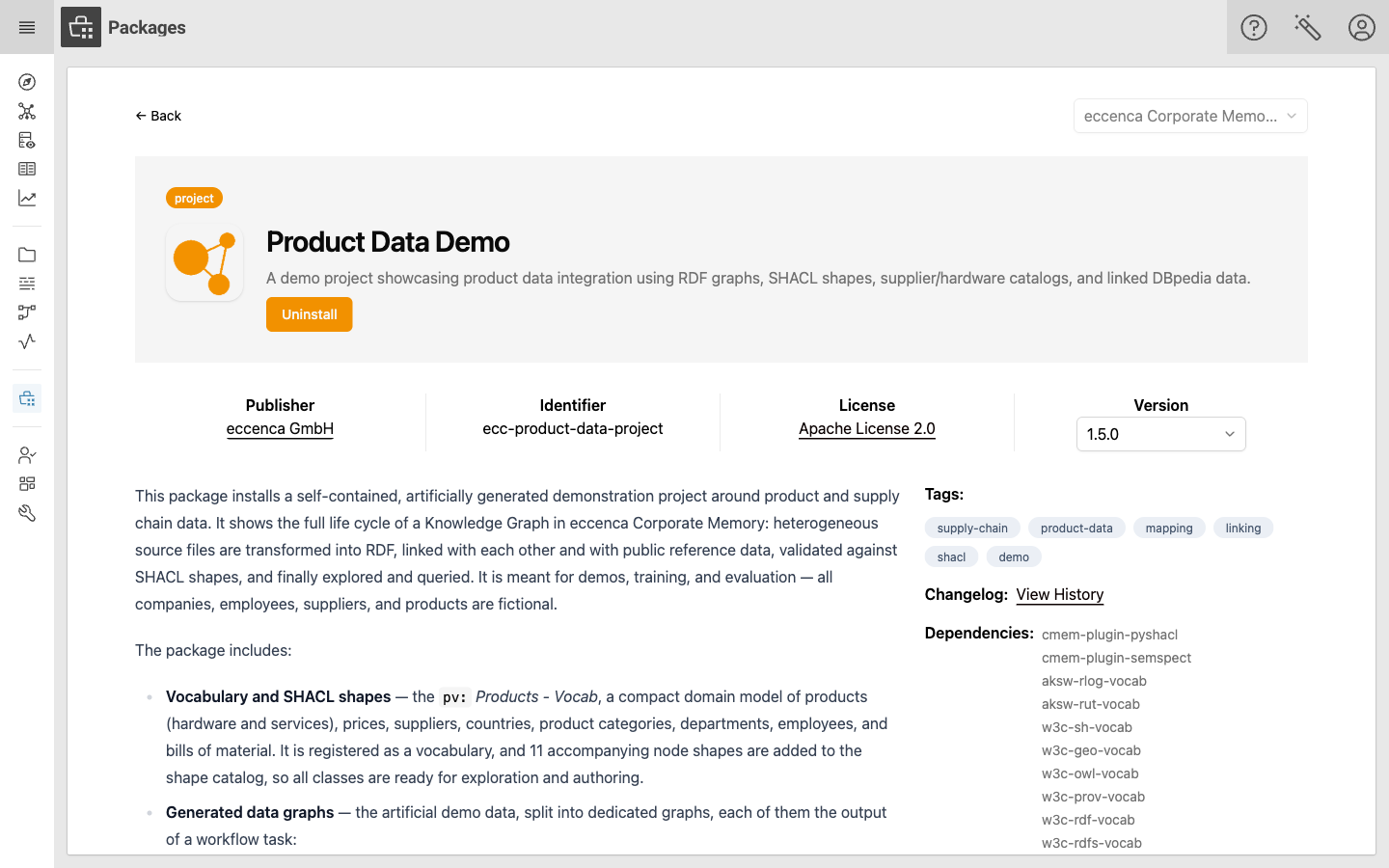
The details page shows:
- The package type badge, icon, name and short description, together with the Install or Uninstall button.
- Publisher - the organization or person publishing the package, linked to its homepage if provided.
- Identifier - the unique package ID, for example
ecc-product-data-project. You need this ID when you work with cmemc. - License - the license the package is published under, linked to the license text.
- Version - the released version the page shows. Open the list to look at the description, tags and dependencies of another version of this package.
- The long description of the package, describing in detail which graphs, projects, queries and configurations are installed.
- Tags - free-text keywords used by the publisher to categorize the package.
- Changelog - click View History to read the release notes of all versions of this package.
- Dependencies - the other Marketplace Packages and Python plugins this package needs. They are installed together with the package.
- Screenshots and further images shipped by the package, if any.
Click Back to return to the overview.
Install a Package¤
To install a package, click Install, either on the package card in the overview or on the package details page. The package is fetched from the Marketplace Server and installed into your Corporate Memory instance, together with the dependencies listed on its details page.
Clicking Install starts the installation right away - there is no additional confirmation dialog, so make sure you picked the right package and version beforehand. Depending on the size of the package and the number of dependencies, the installation can take a while. Once it has finished, the card and the details page offer Uninstall instead of Install.
Installing a specific version
The latest version is preselected. To install an older one, open the package details page, select the version you want in the Version list, and click Install.
One installation at a time
Only one installation can run at a time. Starting another one while an installation is still in progress results in an error. Wait until the running installation has finished, then start the next one.
Change the Version of an Installed Package¤
There is no update action in the Marketplace, and the Version list does not offer to install another version of a package that is already installed: as long as a package is installed, its card and its details page only offer Uninstall, no matter which version you select.
To move an installed package to another version - a newer as well as an older one:
- Uninstall the package.
- Select the version you want in the Version list on the package details page.
- Click Install.
The detour via uninstall removes the package contents
Since the package has to be uninstalled first, its contents - including your changes to them - are removed before the other version is installed, see Uninstall a Package. Export what you want to keep beforehand.
On the command line, cmemc package install --replace overwrites an installed package version in place, without uninstalling it first, see Manage Packages on the Command Line.
Where the Package Contents Appear¤
An installed package does not show up as one single item in Corporate Memory. Its contents surface in the module they belong to:
- Graphs, including vocabularies and shapes catalogs, are listed in Knowledge Graphs.
- Build projects are imported into Projects. When your first project package is installed, Corporate Memory also creates a special project holding all installed files. It is managed automatically and removed again once the last package has been uninstalled.
- Queries are shipped as a query catalog graph and are therefore available in the Query module.
For a package such as Product Data Demo, this means that right after the installation you can start exploring the installed integration graph, run the shipped queries, and execute the shipped workflows.
Uninstall a Package¤
To remove a package, click Uninstall on the package card or on the package details page, and confirm the Confirm action dialog with Confirm.
This removes all contents of the package from your Corporate Memory instance, including the graphs and the Build projects that came with it.
Uninstalling removes data
Changes you made to the graphs or Build projects of a package are removed together with the package. Export what you want to keep before you uninstall.
Manage Packages on the Command Line¤
Everything described on this page can also be done with the cmemc command line interface, which additionally allows you to install packages that are not published on a Marketplace Server, for example a Corporate Memory Package Archive (.cpa file) you received directly:
$ cmemc package install ecc-product-data-project
Installing package 'ecc-product-data-project' from marketplace ... done
See Marketplace Packages: Installation and Management for the complete workflow and the package command group for the command reference.
Build Your Own Packages¤
Vocabularies, graphs, Build projects and configurations of your own solution can be bundled into a Marketplace Package as well, and then be shared with other teams or published to a Marketplace Server.
See Marketplace Packages: Development and Publication for an overview and the step-by-step tutorial to build your first package.