Build a Companion catalog¤
AI Disclaimer
Companion is an AI-based feature. AI-generated content may be inaccurate or incomplete. Verify important information.
Introduction¤
The purchasing team of a fictional hardware company asks the same two questions again and again: who supplies a part, and which supplier is the cheapest? This tutorial gives the team its own agents in the Companion of eccenca Corporate Memory, using the module Companion Management.
The tutorial builds a small agent network in a catalog of its own:
- The catalog
Procurement Companionholds everything that the tutorial adds, separate from the shipped catalog. - The task agent
supplier_lookupfinds the suppliers and prices of one part. - The interactive agent
procurement_advisoranswers the questions of the purchasing team and startssupplier_lookup. - The skill
/cheapest_supplierasks for the cheapest supplier of a part with one command.
No routing agent is added.
The shipped routing agent default_router has an empty Handoff agents list, so it hands a question to any interactive agent whose description fits, including procurement_advisor.
Prerequisites¤
- The Companion is configured for the deployment, see Configuration.
- The user has the actions
https://vocab.eccenca.com/auth/Action/Explore-Companion-Useandhttps://vocab.eccenca.com/auth/Action/Explore-Companion-Manage, see Access. - The package Product Data Demo (
ecc-product-data-project) is installed, see Install a package. It provides the hardware parts, suppliers and prices in the graphhttp://ld.company.org/prod-inst/.
1 Create the catalog¤
A catalog is a graph that holds agents, skills and named models.
The main catalog Default Companion Catalog Overlay imports the other catalogs, and the Companion runs the merged result.
- Open Companion management under ADMIN in the main navigation.
- Select the Catalog tab, then the Catalogs tab.
- Click Add a new catalog in the header.
-
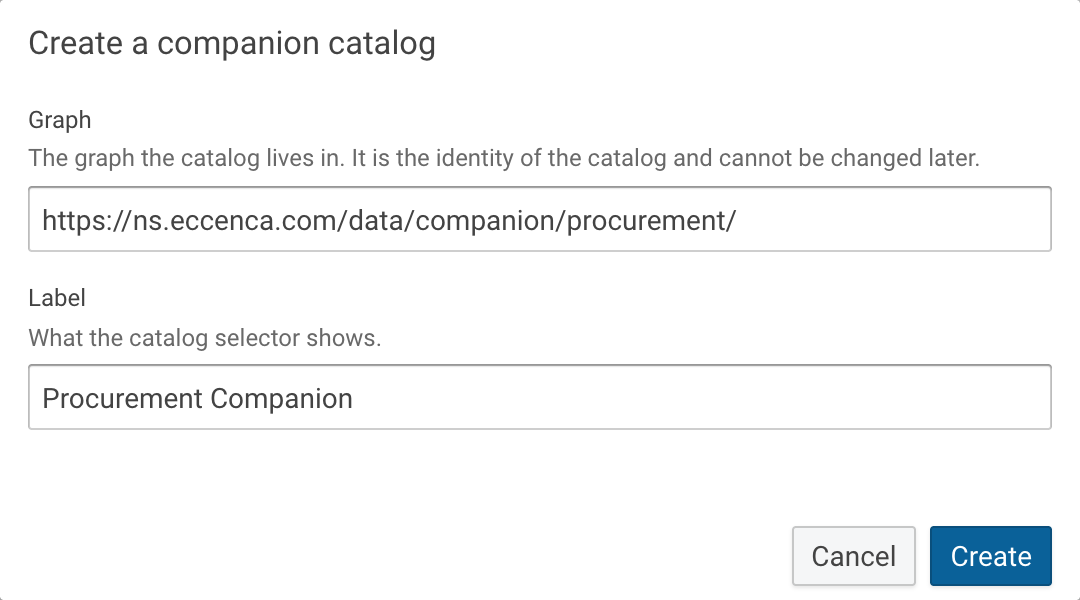
Enter the following values:
- Graph:
https://ns.eccenca.com/data/companion/procurement/ - Label:
Procurement Companion
The Label field is filled from the end of the graph IRI. Replace its value.
- Graph:
-
Click Create.
The catalog Procurement Companion appears under Catalog graphs.
The main catalog imports it right away.
2 Create the task agent¤
A task agent is a worker that an interactive agent starts for one piece of work. Create it first, so that the interactive agent can refer to it.
- Select the Agents tab.
- Select
Procurement Companionin the catalog selector next to Agents. The selector starts with Default Companion Catalog Overlay (main), and a new agent is added to the catalog that it shows. - Click Add a new agent in the header.
- Select Task agents under Kind of agent. The kind cannot be changed afterwards.
- Enter
supplier_lookupin the Identifier field and click Create. -
Enter the following values:
- Label:
Supplier Lookup, filled from the identifier - Description:
Finds every supplier of a hardware part, with country and price. - Model:
fast -
System message:
The interactive agent reads the Description to decide when to start the task agent.
- Label:
-
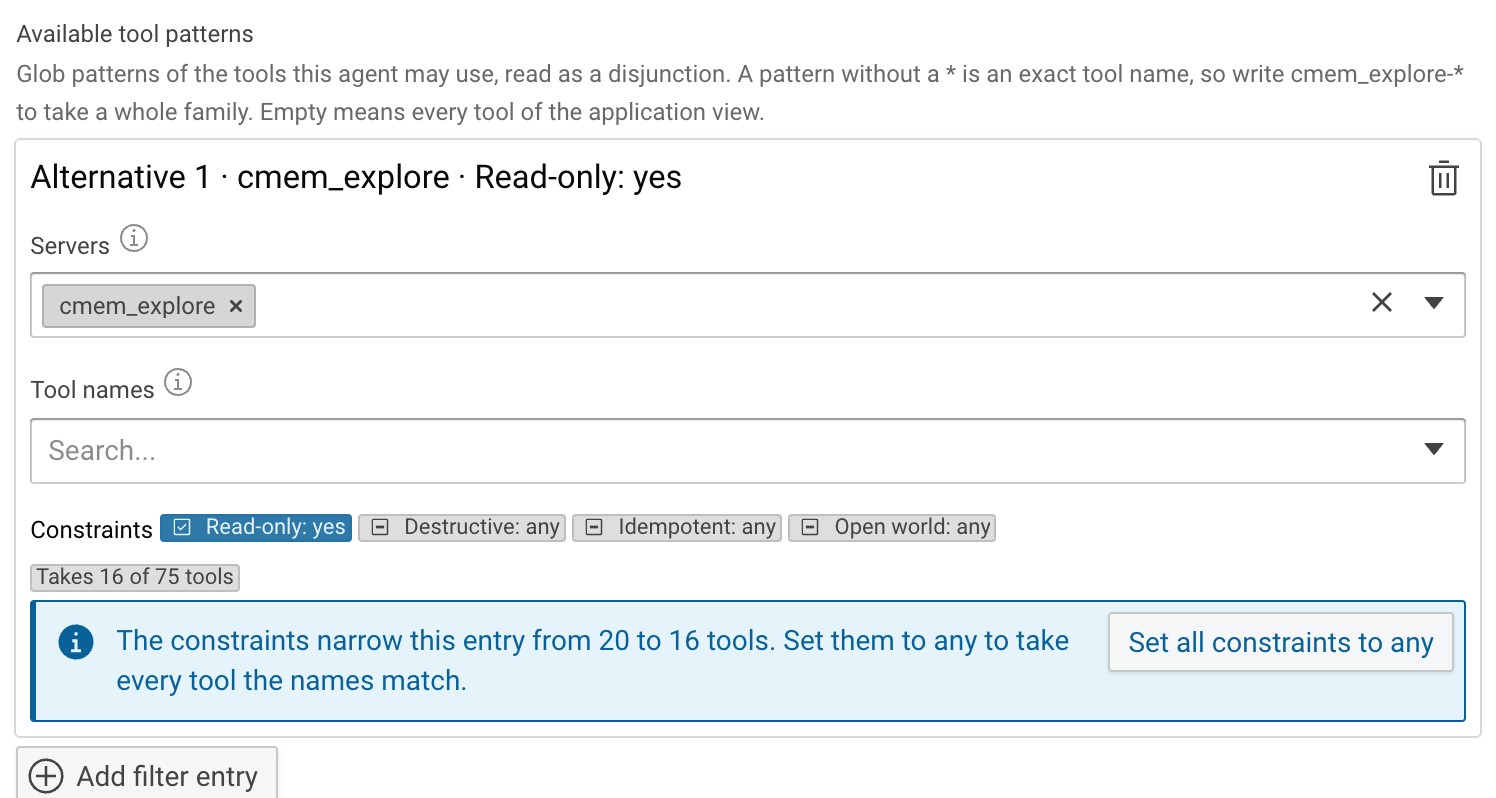
Under Available tool patterns, click Add filter entry. An agent without a filter entry gets no tools.
- Select
cmem_explorein the Servers field. -
Click Read-only: any under Constraints, so that it shows Read-only: yes. The entry now takes only the tools of the Explore server that do not change data.
-
Enter
http://ld.company.org/prod-inst/in the Focus graphs field and select Add new item ‘http://ld.company.org/prod-inst/‘. The graph is shown with its labelProducts - Integration. - Click Save changes in the header.
3 Create the interactive agent¤
An interactive agent fulfills a role in the conversation and answers the user.
- Click Add a new agent in the header, with
Procurement Companionstill selected in the catalog selector. - Select Interactive agents under Kind of agent.
- Enter
procurement_advisorin the Identifier field and click Create. -
Enter the following values:
- Label:
Procurement Advisor, filled from the identifier - Description:
Answers questions of the purchasing team about hardware parts, their suppliers and their prices. - Model:
default -
System message:
The routing agent reads the Description to decide which interactive agent gets a question.
- Label:
-
Add a filter entry with the server
cmem_exploreand the constraint Read-only: yes, as forsupplier_lookup. - Select
supplier_lookupin the Task agents field. - Add
http://ld.company.org/prod-inst/to the Focus graphs field, as forsupplier_lookup. - Click Save changes in the header.
4 Create the skill¤
A skill is a prompt that a user calls with a slash command in the chat.
- Select the Skills tab.
- Select
Procurement Companionin the catalog selector next to Skills. - Click Add a new skill in the header.
- Enter
cheapest_supplierin the Identifier field and click Create. -
Enter the following values:
- Name:
cheapest_supplier, filled from the identifier - Description:
Finds the cheapest supplier of a hardware part. -
Prompt:
{{ skill.argument }}holds the text that the user enters after the skill name. The Description is shown next to the skill in the chat. - Name:
-
Click Save changes in the header.
5 Check the agent network¤
- Select the Agent network tab.
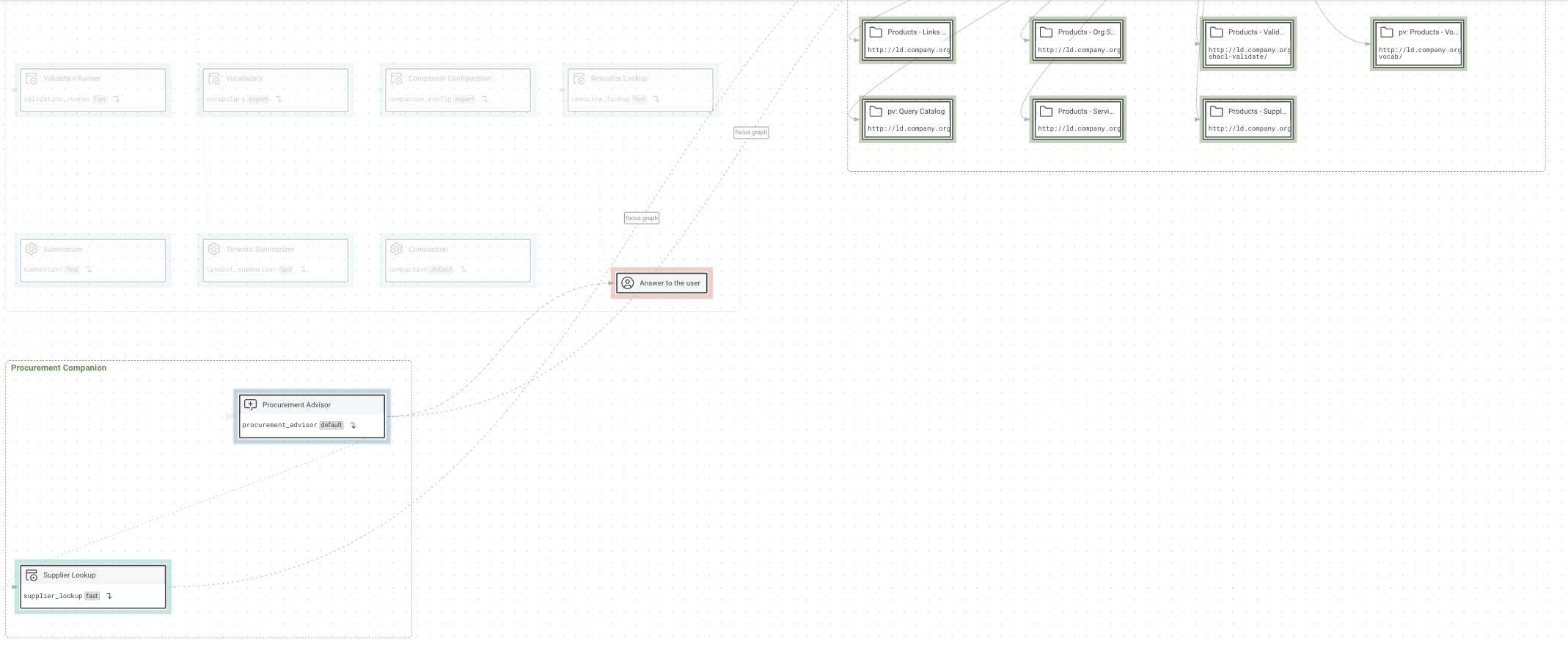
- Click By catalog. Each catalog is shown as a group of its own.
- Use the zoom controls in the lower left corner to enlarge the group Procurement Companion.
- Click the Procurement Advisor node.
The view highlights what the agent reaches: the task agent Supplier Lookup, the focus graph and Answer to the user.
6 Ask the Companion¤
- Click Chat with the companion in the application header.
- Click New chat.
-
Enter the following question and press Enter:
The routing agent hands the question over to Procurement Advisor, which is named above the answer.
The answer names the agent and its model, for example procurement_advisor · anthropic/claude-sonnet-5.
The product data lists six suppliers of the Resonator Transformer, and the cheapest is Grant-Nelson at 0.79 EUR.
The wording of the answer can differ from chat to chat.
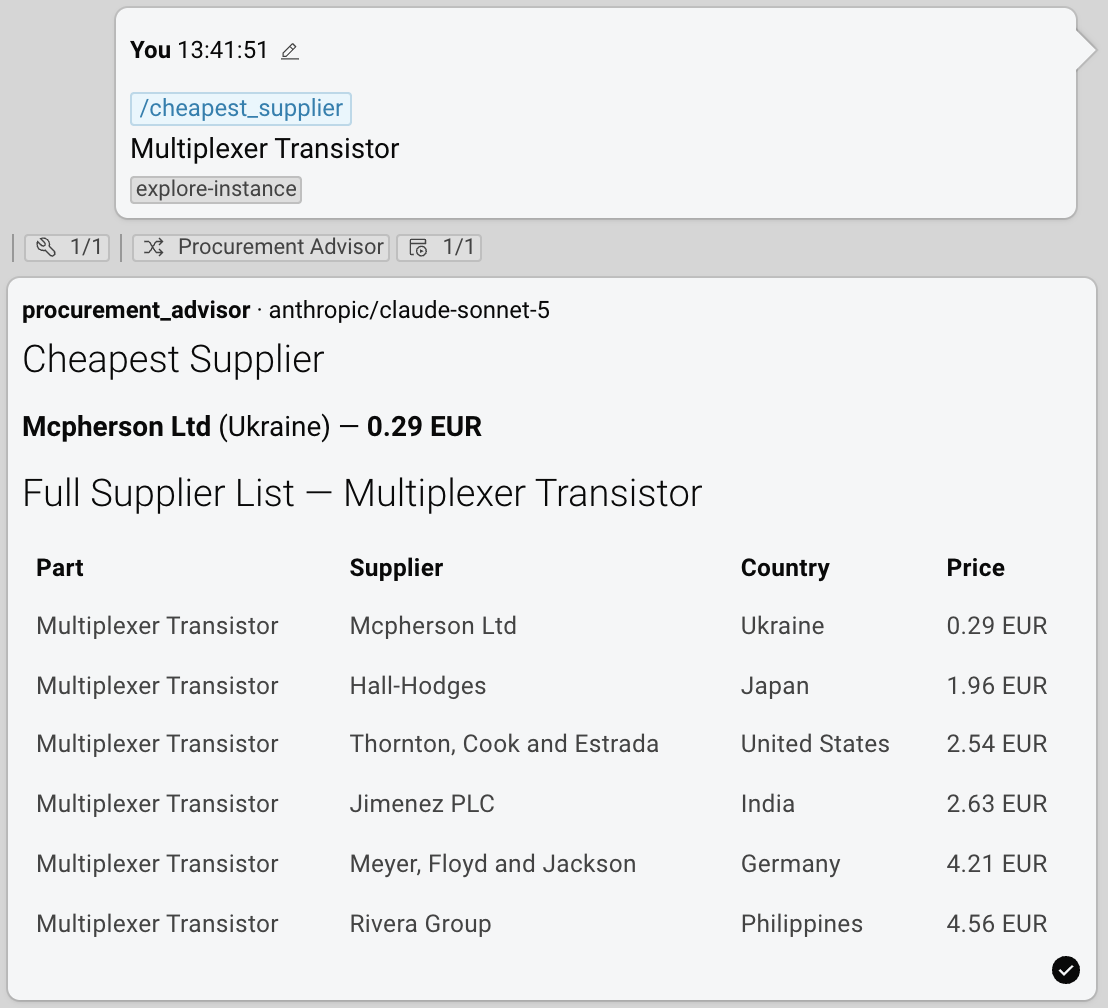
Then call the skill:
- Click New chat.
- Enter
/in the input field and select/cheapest_supplierfrom the list. - Enter
Multiplexer Transistorafter the skill name and press Enter.
Both agents only read data, so the chat works in the mode Read only.