Companion Management¤
AI Disclaimer
Companion is an AI-based feature. AI-generated content may be inaccurate or incomplete. Verify important information.
The Companion Management module configures the Companion of eccenca Corporate Memory. It shows how agents route a request, holds the catalog of agents, skills and named models, lists the tools an agent can call and keeps the conversations of all users. The concepts behind these entries are explained in How the Companion works. For a walkthrough that adds a catalog with two agents and a skill, see Build a Companion catalog.
Prerequisites¤
- The Companion is configured for the deployment, see Configuration.
- The user has the action
https://vocab.eccenca.com/auth/Action/Explore-Companion-Manage, see Access.
Open Companion Management¤
Click Companion management under ADMIN in the main navigation. The module opens with four tabs:
- Agent network
- Catalog
- Tools
- History
Agent network¤
The Agent network tab shows every path a request can take, not a single conversation. A request travels from an application view through a routing agent to an interactive agent and back to the user. Task agents and auxiliary agents are shown below, the graphs that no agent focuses on are shown as Standalone graphs.
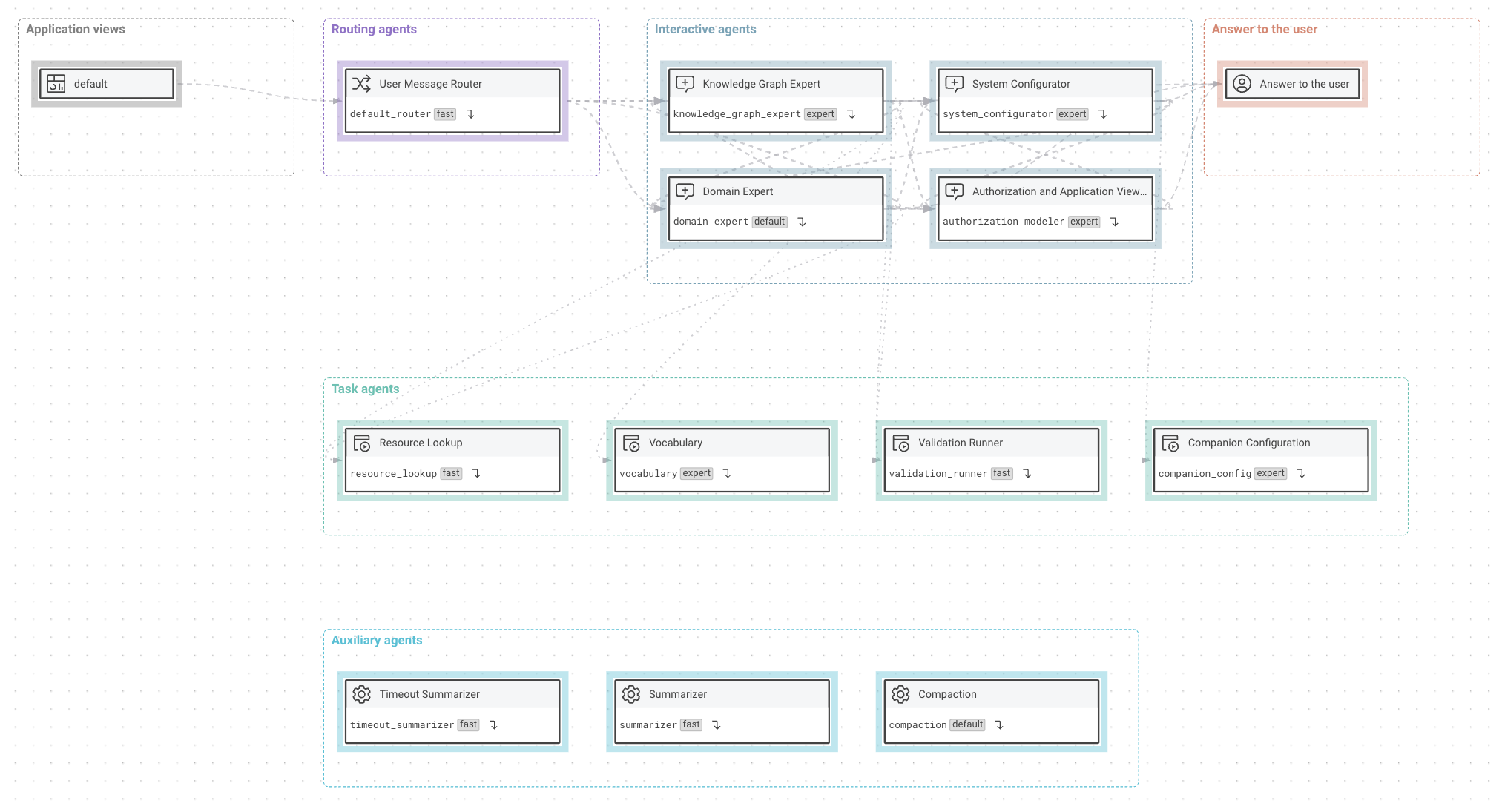
Each agent node shows the label, the id and the named model of the agent, for example domain_expert with default.
- Select By kind or By catalog to group the nodes by the kind of agent or by the catalog that holds them.
- Click a node to highlight what it reaches. Click Clear selection to remove the highlight.
- Click Go to the agent definition on an agent node to open the agent in the Catalog tab.
Catalog¤
The Catalog tab holds the entries of the catalog in four tabs:
- Catalogs
- Agents
- Skills
- Models
Each tab lists the entries on the left and shows the selected entry on the right. Enter a search term above the list to filter it.
Catalogs¤
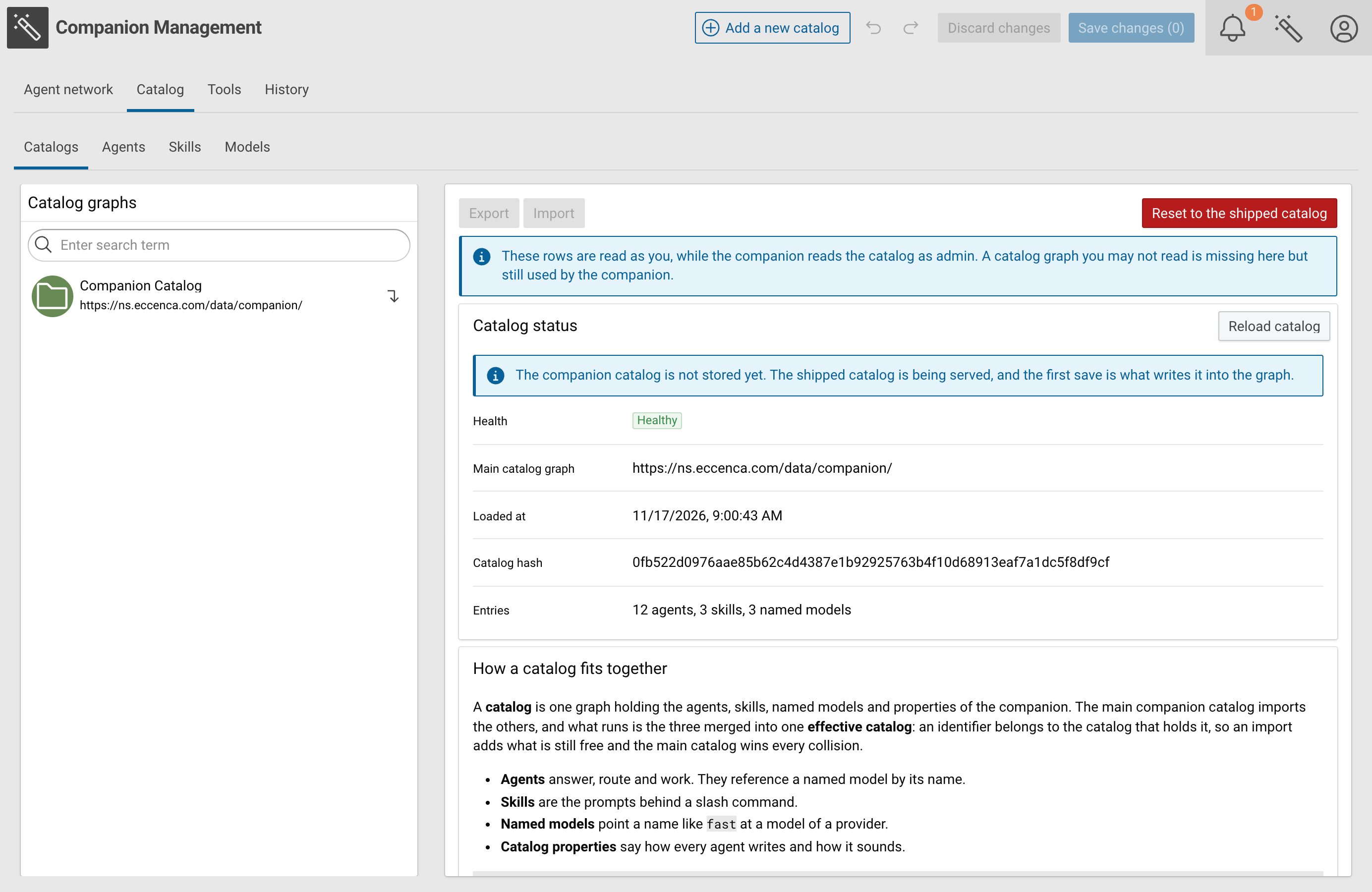
The Catalog graphs list shows the main catalog graph and the catalog graphs it imports. Select a catalog graph to see its Catalog status:
- Health of the catalog, for example
Healthy - Main catalog graph
- Loaded at, the time the catalog was last loaded
- Catalog hash
- Entries, the number of agents, skills and named models
The list contains only the catalog graphs that the current user can read. The Companion reads the catalog as administrator, so it also uses catalog graphs that are missing from the list.
The following actions apply to the selected catalog graph:
- Click Export to download the catalog.
- Click Import to load a catalog from a file.
- Click Reload catalog to load the catalog from the graph again.
- Click Add a new catalog in the header to add a catalog graph.
Warning
Reset to the shipped catalog replaces the catalog with the catalog shipped with Corporate Memory. Changes made to agents, skills and named models are lost.
Agents¤
The Agents tab lists the agents grouped by kind: Routing agents, Interactive agents, Task agents and Auxiliary agents.
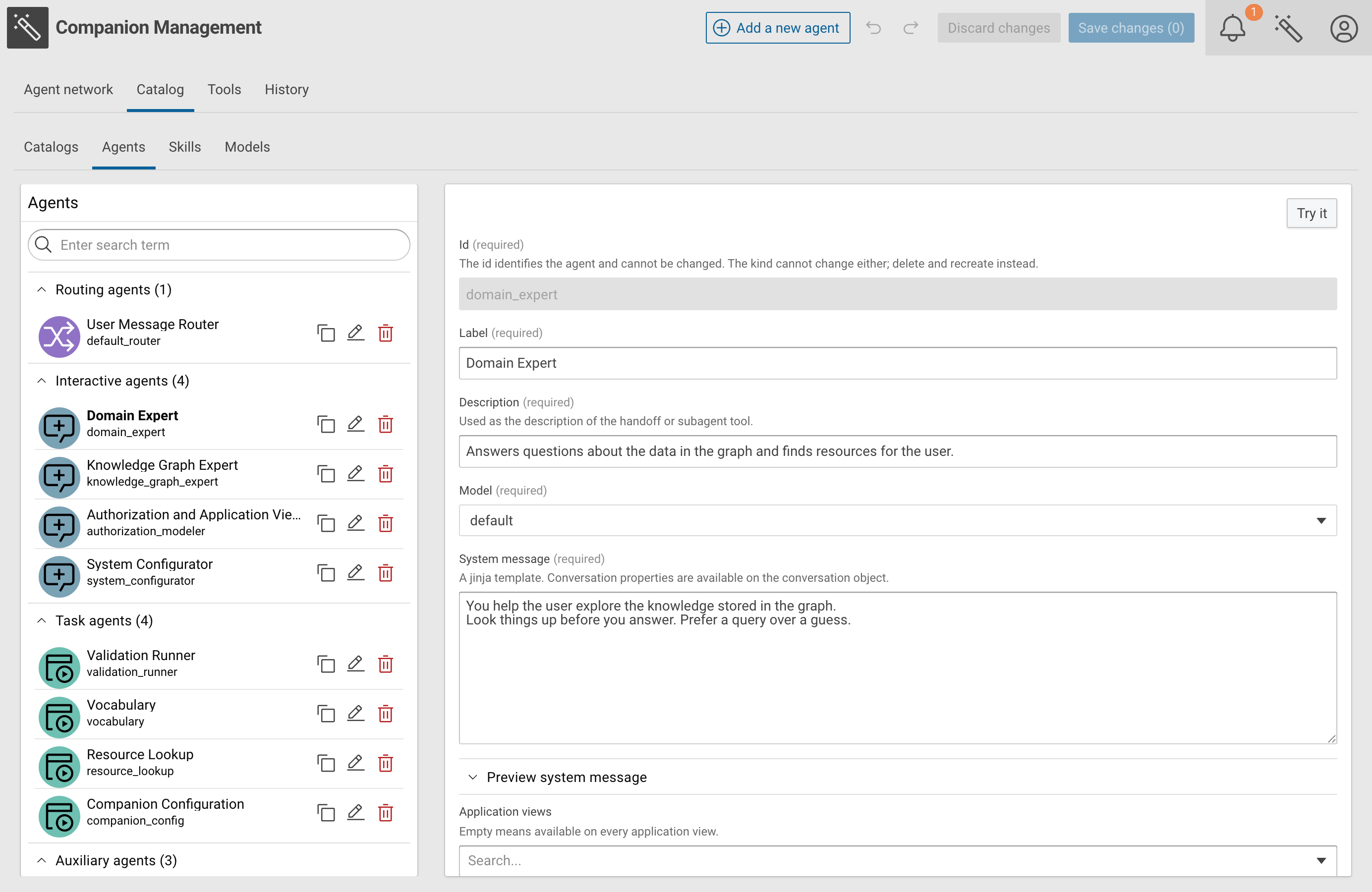
- Select an agent to edit it.
- Click Clone to create a copy of an agent with a new identifier, in a catalog of choice.
- Click Rename to change the identifier of an agent.
- Click Delete to delete an agent.
- Click Add a new agent in the header to create an agent.
The kind of an agent is set when the agent is created and cannot be changed afterwards. To change the kind, delete the agent and create it again.
An agent has the following fields:
- Id: the identifier of the agent in lowercase letters, digits and underscores, which is changed only with Rename
- Label
- Description: used as the description of the handoff or subagent tool through which other agents call it
- Model: the named model the agent runs on, for example
default - System message: the instructions of the agent as a Jinja template.
The properties of the conversation are available on the
conversationobject. Expand Preview system message to see the rendered message. - Application views (optional): the application views on which the agent is available. Without an entry, the agent is available on every application view.
- Available tool patterns (optional): glob patterns of the tools the agent may use, for example
cmem_explore-*. A pattern without*is an exact tool name. The constraints Read-only, Destructive, Idempotent and Open world narrow an entry to the tools that declare these hints. Without an entry, the agent uses every tool of the application view. - Activity verbs (optional): the words shown in the chat while the agent works, for example
Looking uporQuerying - Task agents (optional): the task agents this agent may start
- Handoff agents (optional): the interactive agents this agent may hand the conversation to
- Own personality, Own output instructions and Own resources rendering: switches that keep the personality, the output instructions and the resources overview of the catalog out of the system message of this agent
- Focus graphs (optional): the graphs the agent focuses on, rendered into an overview for its system message
- Disabled: switches the agent off
Click Try it to test the agent.
Skills¤
The Skills tab lists the skills with their name, for example /summarize_graph.
A skill has the following fields:
- Id: the identifier of the skill, which is changed only with Rename
- Name: the name the user enters after the slash
- Description
- Prompt: a Jinja template. The text the user enters after the name of the skill is passed to it.
- Application views (optional): the application views on which the skill is available
- Scripts (optional): supplementary JavaScript stored with the skill
- Model override (optional): a named model that replaces the model of the agent. A switch of the model prevents prompt caching, so leave this field empty unless the skill needs a different model.
- Disabled: switches the skill off
Click Add a new skill in the header to create a skill. The list offers Clone, Rename and Delete as for agents.
Models¤
The Models tab lists the named models, for example fast, default and expert.
A named model has the following fields:
- Name: the name agents reference, in lowercase letters, digits and underscores
- Provider:
configured defaultuses the provider and the model of the application configuration - Model, Temperature, Max tokens, Top P and Reasoning effort: the parameters the model runs with
Click Test model to test the named model. Click Add a new named model in the header to create a named model.
Save changes¤
Changes to catalogs, agents, skills and named models are collected until they are saved. Save changes shows the number of unsaved changes, for example Save changes (2).
- Click Undo or Redo to step through the unsaved changes.
- Click Discard changes to drop all unsaved changes.
- Click Save changes to write the changes into the catalog graph.
As long as the catalog has not been saved, the Companion uses the catalog shipped with Corporate Memory. The first save writes the catalog into the main catalog graph.
Tools¤
The Tools tab lists the tools an agent can call, grouped by MCP server, for example build with the prefix cmem_build-*.
Each tool shows its description, its arguments and the hints it declares about itself, such as read, write or open world.
A required argument is marked with *.
A tool that declares no hints counts as changing data, so the Companion asks for a confirmation before it runs the tool.
- Enter a term in Search tools to filter the list.
- Click What this server says about its tools to read the full description of a server.
- Click Try it out to call a tool.
History¤
The History tab lists All interactions of all users with the Companion. Each entry shows the title, the user, the agent, the number of messages and the time of the last message.
Filter the list with the following fields:
- Search by name
- User: the account name
- From and To: the time range
- Kind:
Conversations,Agent previewsorSystem runs
The following actions apply to a single entry:
- Click Open to read the conversation.
- Click Export to download the conversation.
- Click Delete to delete the conversation.
Click Back up all to download all interactions, and Restore to load them from a backup.