Change journal¤
Introduction¤
The change journal records the changes to a Build project in eccenca Corporate Memory. Each entry states who made the change, when, from which client and what it changed.
The journal serves two purposes:
- Undo changes: Almost every change can be reverted from the journal, whether it was made in the user interface, through the REST API or by an agent.
- Review the work of agents: An agent that works on a project through the Build MCP server changes it without asking for each step. Its changes stay marked as unreviewed until a person reviews them.
Everyone who can open a project sees its change journal and can review and revert its changes.
Availability
The change journal is available starting with Corporate Memory version 26.3.
Recorded changes¤
The journal records changes to the content of a project:
- Tasks that are added, updated or removed, including datasets, transformations and workflows
- Single mapping rules, and the nodes and connections of a workflow
- Project variables
- Tags
- Uploaded and deleted files
- Workflow runs, and workflow runs proposed by an agent
Project settings such as the label or the prefixes of the project are not recorded.
Open the change journal¤
The Changes card on the project view summarizes the journal. It states the number of recorded changes and how many changes made by an agent await review.
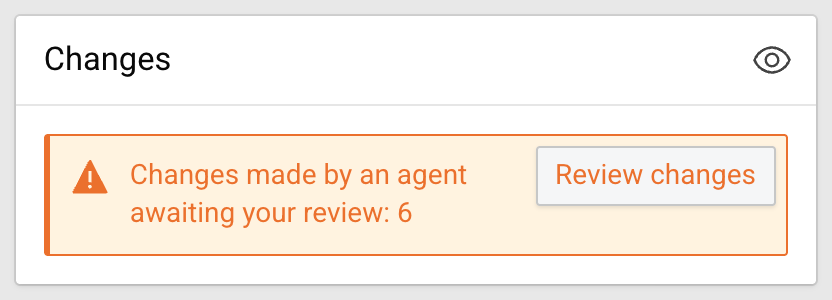
Open the journal in one of the following ways:
- Click in the header of the Changes card.
- Click Review changes in the Changes card, if changes await review.
- Click in the header of the project and select Changes.
The Changes view of the project opens.
Find a change¤
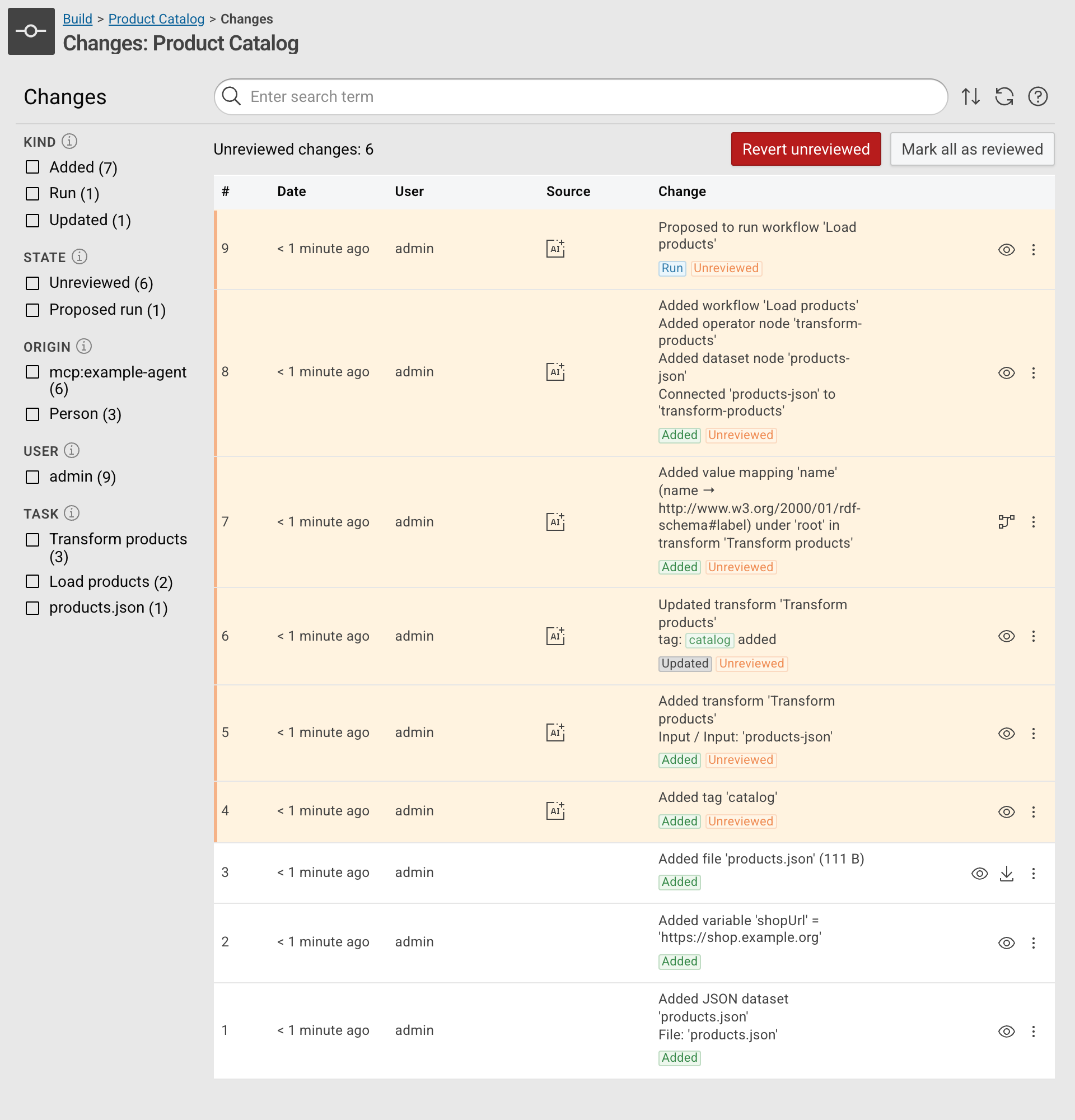
The journal lists the changes newest first. Each row shows:
- #: the sequence number of the change in the project
- Date: when the change was made
- User: the account that made the change
- Source: an icon if the change was made by an agent; hover over the icon to see the client name
- Change: a summary of the change, the details of what it changed, and tags for its kind and state
The icons at the end of a row open what the change refers to:
- opens the task or the project.
- opens a mapping rule in the mapping editor.
- downloads an added file.
- A workflow run additionally links its execution report.
To narrow down the list, use the following controls:
- Enter a term in the search field to search the change summaries.
- Select values in the facets on the left: KIND (for example Added, Updated, Run), STATE (for example Unreviewed, Proposed run), ORIGIN (Person or the client name of an agent), USER and TASK.
- Click to change the sort order.
- Click to load changes made since the list was opened.
- Click to open a description of the change journal.
Revert a change¤
A revert undoes exactly what a change did. For example, reverting the addition of a mapping rule removes this rule and nothing else.
To revert a change, follow these steps:
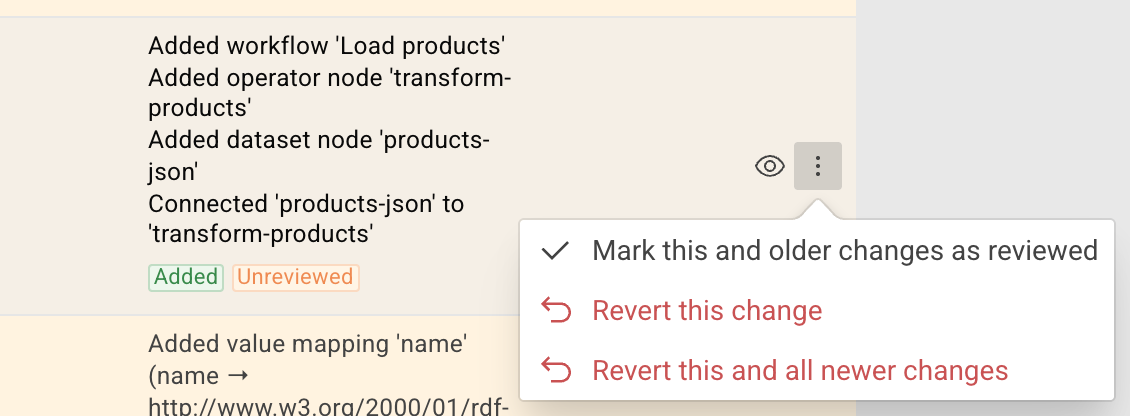
- Click in the row of the change.
-
Select one of the following entries:
- Revert this change reverts the selected change only.
- Revert this and all newer changes returns the project to the state before the selected change.
-
Click Revert to confirm.
The revert is recorded as a new change. Reverting this new change redoes the original change.
A change can be reverted as long as what it changed is still as the change left it. Otherwise, the revert entry is disabled, and its tooltip states the reason, for example that a newer change modified the task or that another task references it. Reverting the newer changes first can make the revert possible again.
A revert of several changes skips the changes that cannot be reverted and stops at the first conflict. The result lists the reverted changes.
Some changes cannot be reverted
A workflow run cannot be reverted. Data that a run wrote, for example to a file, a Knowledge Graph or an external database, remains after the changes that the run used are reverted. Overwriting or deleting a file cannot be reverted either.
Review changes made by an agent¤
Changes that an agent makes through the Build MCP server are marked as Unreviewed. The journal highlights them and states their number above the list. The MCP server offers no tool to mark changes as reviewed, so an agent cannot approve its own work.
To review the changes, follow these steps:
- Click Review changes in the Changes card of the project.
- Check each unreviewed change, and revert the changes that are not wanted, as described in Revert a change.
- Mark the remaining changes as reviewed:
- Click Mark all as reviewed to mark all listed changes as reviewed. Click before, to include changes made since the list was opened.
- Alternatively, click in the row of a change and select Mark this and older changes as reviewed. This marks the selected change and all older changes, and leaves the newer changes for later.
- Click Confirm.
To reject all unreviewed changes at once, click Revert unreviewed and then Revert. The changes are reverted newest first.
Workflow runs proposed by an agent¤
While the review gate is enabled, which is the default, an agent does not run a workflow while unreviewed changes exist, because a run would use these changes and its results cannot be reverted. Instead, the request is recorded as a change of the state Proposed run, and the agent is asked to wait for the review.
- After all changes are marked as reviewed, the next request of the agent runs the workflow. The run is recorded with a link to its execution report.
- Reverting the proposed run rejects it.
Configuration and API¤
The journal of a project is stored on the file system of Build and survives a restart.
A project export contains the journal by default.
The project export endpoints accept the parameter exportChangeJournal=false to leave it out.
Administrators configure the journal and the review gate for agents in the Build configuration (dataintegration.conf):
workspace.changes.plugin-
Selects where the journal is kept:
fileChangeJournalon the file system,inMemoryChangeJournalin memory for the most recent changes only, oremptyChangeJournalto disable the journal together with the review. workspace.changes.fileChangeJournal.dir-
The directory of the file-based journal.
com.eccenca.di.assistant.McpConfig.reviewGate-
Makes workflow runs requested through the MCP server wait for review, as described in Workflow runs proposed by an agent. The default is
true. While the review gate is enabled, the MCP server does not offer theresource_deletetool, because deleting a file cannot be reverted. Set it tofalsefor automation without a reviewer: workflow runs then execute right away, andresource_deleteis available.
The journal of a project is also available through the REST API under /api/workspace/projects/{project}/changes.
See the Build (DataIntegration) API documentation for details.