Review the changes of an AI agent¤
Introduction¤
An AI agent changes a Build project of eccenca Corporate Memory through the Build MCP server. This applies to the Companion in Corporate Memory and to an external agent such as Claude Code. Every change of the agent is recorded in the change journal of the project and awaits review. A workflow run that the agent requests is held back until these changes are reviewed, because the results of a run cannot be reverted.
This tutorial walks through one review from start to end:
- The agent adds two mapping rules to a transformation and requests a run of the workflow.
- The run is held back as a proposed run.
- One mapping rule is reverted, and the remaining changes are marked as reviewed.
- The next request of the agent runs the workflow.
Where the Companion and an external agent differ, a step shows both in separate tabs.
Prerequisites¤
- An agent that works with Corporate Memory, one of the following:
- The Build MCP server allows changes (
com.eccenca.di.assistant.McpConfig.readOnly = false), see Allow changes through the Build MCP server. - The review gate is enabled, which is the default (
com.eccenca.di.assistant.McpConfig.reviewGate = true). -
The project Product Feed with a transformation and a workflow that runs it. Import the project file
product-feed.project.zipin one of the following ways:- In Build, click Create new, select Project, click Add, then Import project file, and select the file.
-
With cmemc:
Alternatively, create the project with the following contents:
- The file
products.csvwith the columnsid,name,priceandsupplier - The CSV dataset Products (CSV), which reads
products.csv - The transformation Transform products, which maps the column
nametohttps://schema.org/name - The workflow Load products, which runs the transformation and writes the result into the Knowledge Graph dataset Products (Knowledge Graph)
The review covers only changes through the Build MCP server
An external agent that can also use cmemc or the Build API changes the project and runs workflows without review, with the permissions of its account. Such changes are recorded as changes of a person, and a workflow run starts right away. Give the agent access to Corporate Memory only through the Build MCP server, and use an account or client with limited permissions, see Permissions of the agent.
1 Let the agent change the project¤
Give the agent a task that changes the project and runs a workflow:
- Open the project Product Feed.
- Click Chat with the companion in the application header.
- Select Ask before writes in the mode selector above the input field. A new chat starts in Read only, which does not change anything, see Modes.
-
Enter the task, for example:
-
Click Confirm in the confirmation dialog of each change, see Confirm a change.
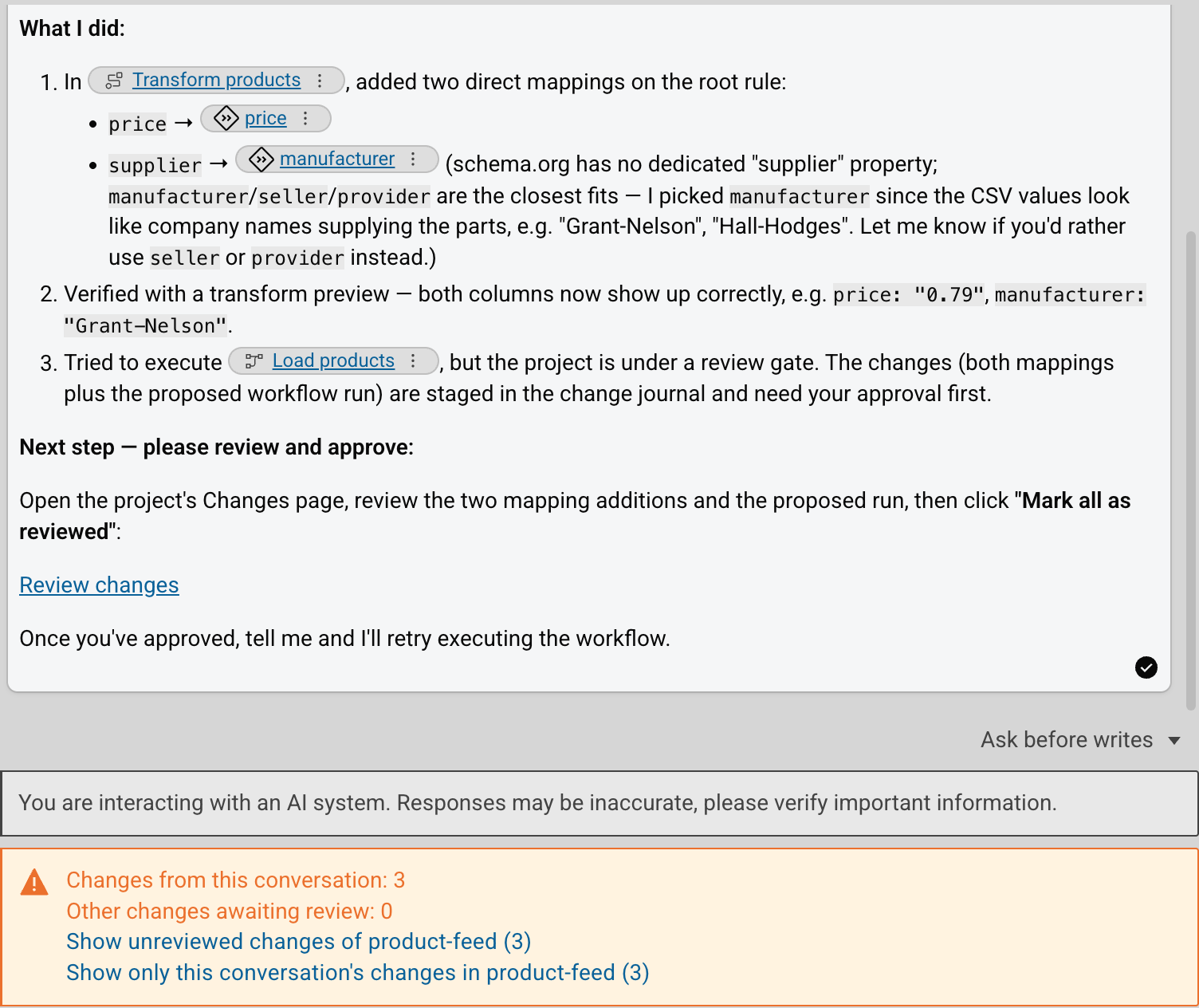
The agent adds two mapping rules: price, which maps the column price to https://schema.org/price, and a rule that maps the column supplier to a schema.org property.
In this example, the rule for supplier is brand, which maps it to https://schema.org/brand.
The property that an agent selects can differ, for example manufacturer.
Then the agent requests the run of Load products.
The Build MCP server does not run the workflow. It records the request as a proposed run and answers that the changes of the agent await review. The answer contains a link to the Changes view of the project and instructs the agent to ask for the review and to request the run again afterwards. How the agent passes this on depends on the agent.
The Companion links Review changes in its answer. Below the chat, a panel counts the unreviewed changes:
- Changes from this conversation — the changes that the Companion made in this chat
- Other changes awaiting review — the unreviewed changes of the project from other sources
- A link that lists the unreviewed changes of the project
- A link that lists only the changes of this chat
2 Open the review¤
Click Review changes in the answer of the Companion, or a link in the panel below the chat.
-
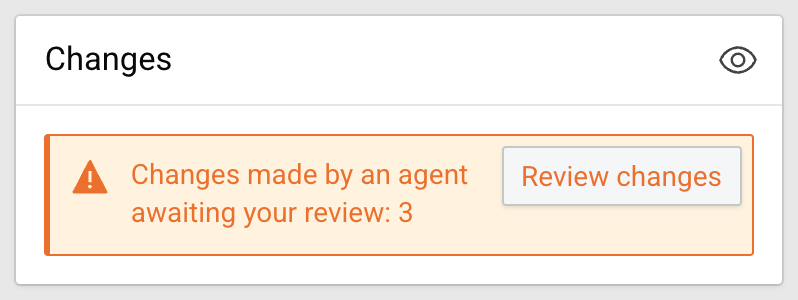
Open the project Product Feed. The Changes card states how many changes made by an agent await review.
-
Click Review changes.
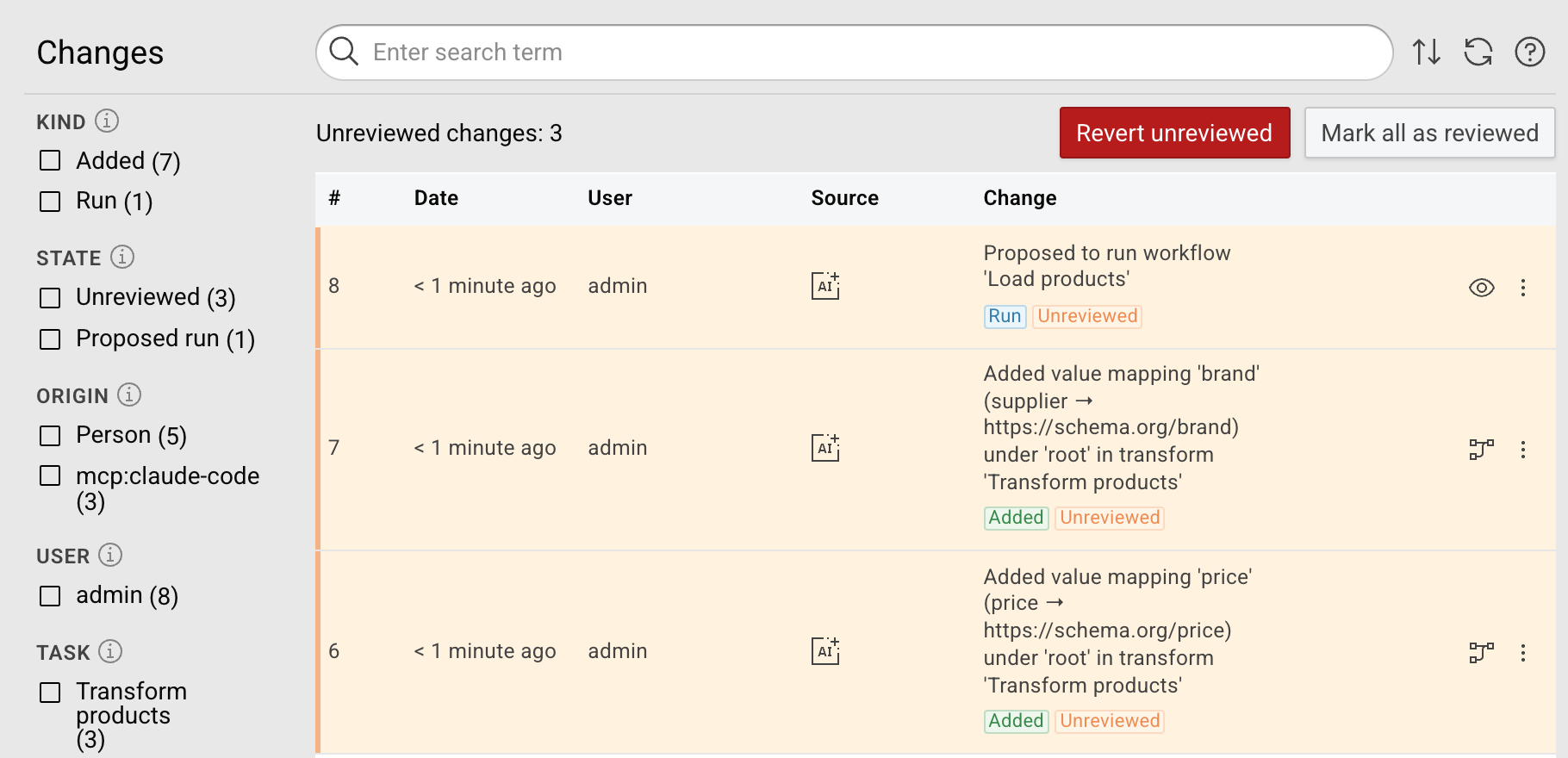
The Changes view of the project opens. Unreviewed changes: 3 above the list counts the changes of the agent: the two mapping rules and the proposed run. They are highlighted, show an AI icon in the Source column and carry the tag Unreviewed. The proposed run carries the tag Run.
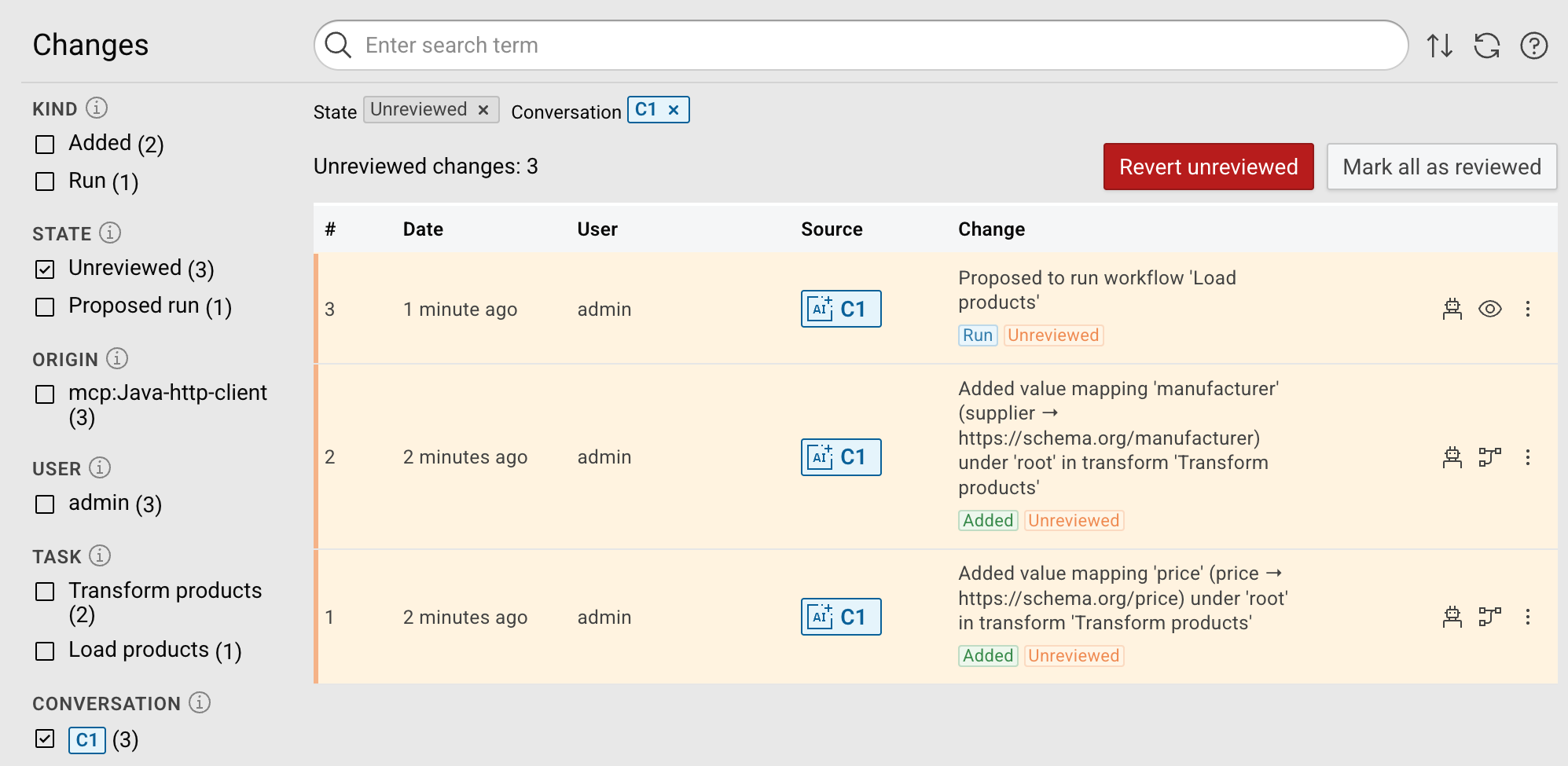
The facets on the left of the Changes view filter the list. To list only the changes of the agent, select a checkbox in one of these facets:
Under CONVERSATION, select the chat of the Companion, for example C1. The facet lists each Companion chat that changed the project.
A change of the Companion also shows its chat as a tag such as C1 in the Source column. Click the tag to filter the list by this chat, or click Open companion conversation in the row to open the chat in the Companion panel.
Under ORIGIN, select the client name of the agent, here mcp:claude-code.
The facet lists Person for changes made in the user interface or through the API, and the client name of each agent that changed the project through the Build MCP server.
Click in the row of a mapping rule to open the rule in the mapping editor.
3 Revert an unwanted change¤
The column supplier holds the company that delivers a part, not its brand or its manufacturer, so the mapping rule for supplier is not wanted.
- Click in the row of the change that adds this rule, here Added value mapping ‘brand’.
- Select Revert this change.
- Click Revert.
The mapping rule is removed from Transform products.
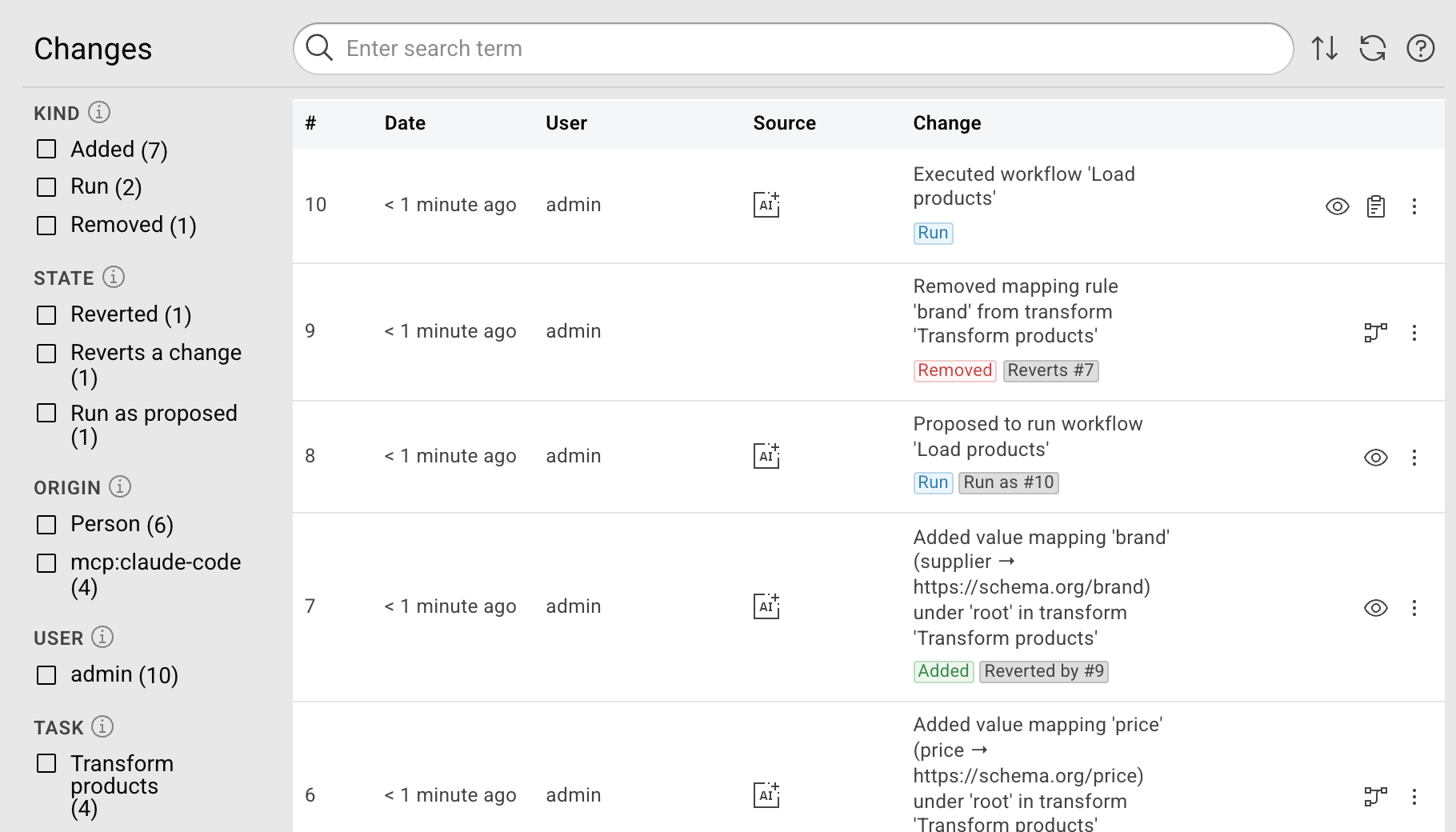
The revert is recorded as a new change with a tag such as Reverts #7, and the reverted change carries a tag such as Reverted by #9.
Unreviewed changes drops to 2.
4 Mark the remaining changes as reviewed¤
- Click Mark all as reviewed.
The dialog lists the changes to mark, here the proposed run and the mapping rule
price. - Click Confirm.
Marking the proposed run as reviewed approves it. To reject a proposed run instead, revert it before marking the remaining changes as reviewed.
5 Let the agent run the workflow¤
Tell the agent that the review is done and ask it to run the workflow again. In the Companion, click Confirm in the confirmation dialog of the run.
The agent requests the run again, and this time the Build MCP server runs Load products. The change journal records the run as Executed workflow ‘Load products’ with a link to its execution report. The proposed run carries a tag such as Run as #10.
The Knowledge Graph now contains the name and the price of each product, and no supplier.
Related¤
- Change Journal describes the journal, the revert and the review in detail.
- Companion AI chat describes the modes and the confirmation of changes in the Companion.
- Agent Integration describes how to connect an external agent and how to limit its permissions.