Access control¤
Introduction¤
Access control manages the access conditions of eccenca Corporate Memory. An access condition states which accounts and groups may read or write which graphs and use which actions. The attributes of an access condition, dynamic access conditions and the command line interface are described in Access conditions.
Open Access control in the ADMIN section of the main navigation. The module has two tabs:
- Manage: create, view, edit and delete access conditions
- Review: the effective access rights of an account
Access¤
Managing access conditions needs the action https://vocab.eccenca.com/auth/Action/ChangeAccessConditions, see Access conditions.
The Manage tab lists the access conditions that the account may manage.
Warning
An access condition can grant access to every graph and every action.
Grant the action https://vocab.eccenca.com/auth/Action/ChangeAccessConditions to administrators only.
Manage access conditions¤
The Manage tab lists the access conditions. Enter a search term in Search access conditions to filter the list.
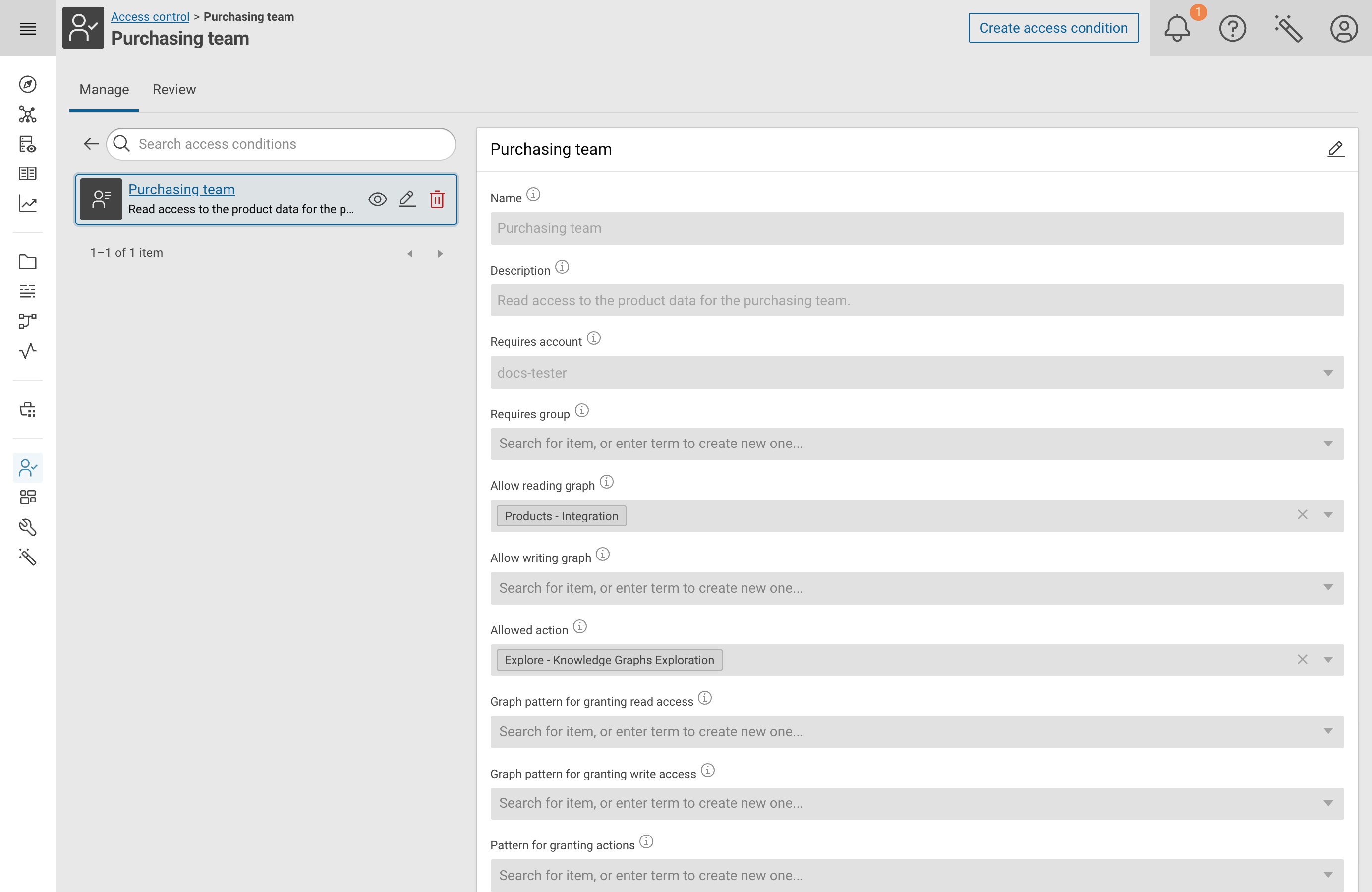
Each access condition in the list offers the following actions:
- Click to view the access condition.
- Click to edit the access condition.
- Click to delete the access condition, then confirm with Delete.
Create an access condition¤
- Click Create access condition in the header.
-
Enter the values of the access condition:
- Name and Description
- Requires account: the account the condition applies to
- Requires group: the groups the account must be a member of. Enter the name of a group and select Create new item.
- Allow reading graph and Allow writing graph: the graphs the condition grants read or write access to.
Enter the IRI of a graph.
An existing graph is listed with its label, for example
Products - Integration. - Allowed action: the actions the condition grants, for example
Explore - Knowledge Graphs Exploration - Graph pattern for granting read access, Graph pattern for granting write access and Pattern for granting actions: the graphs and actions for which the account may manage access conditions itself
- Dynamic access condition: a SPARQL query that computes the grants, see Dynamic Conditions
An access condition needs at least one grant or a dynamic access condition. All requirements of an access condition must be met: several groups in Requires group are combined with AND.
-
Click Save.
The access condition opens in the view. Click in its header to edit it.
Review effective rights¤
The Review tab shows the effective access rights of an account, merged from all access conditions that apply to it.
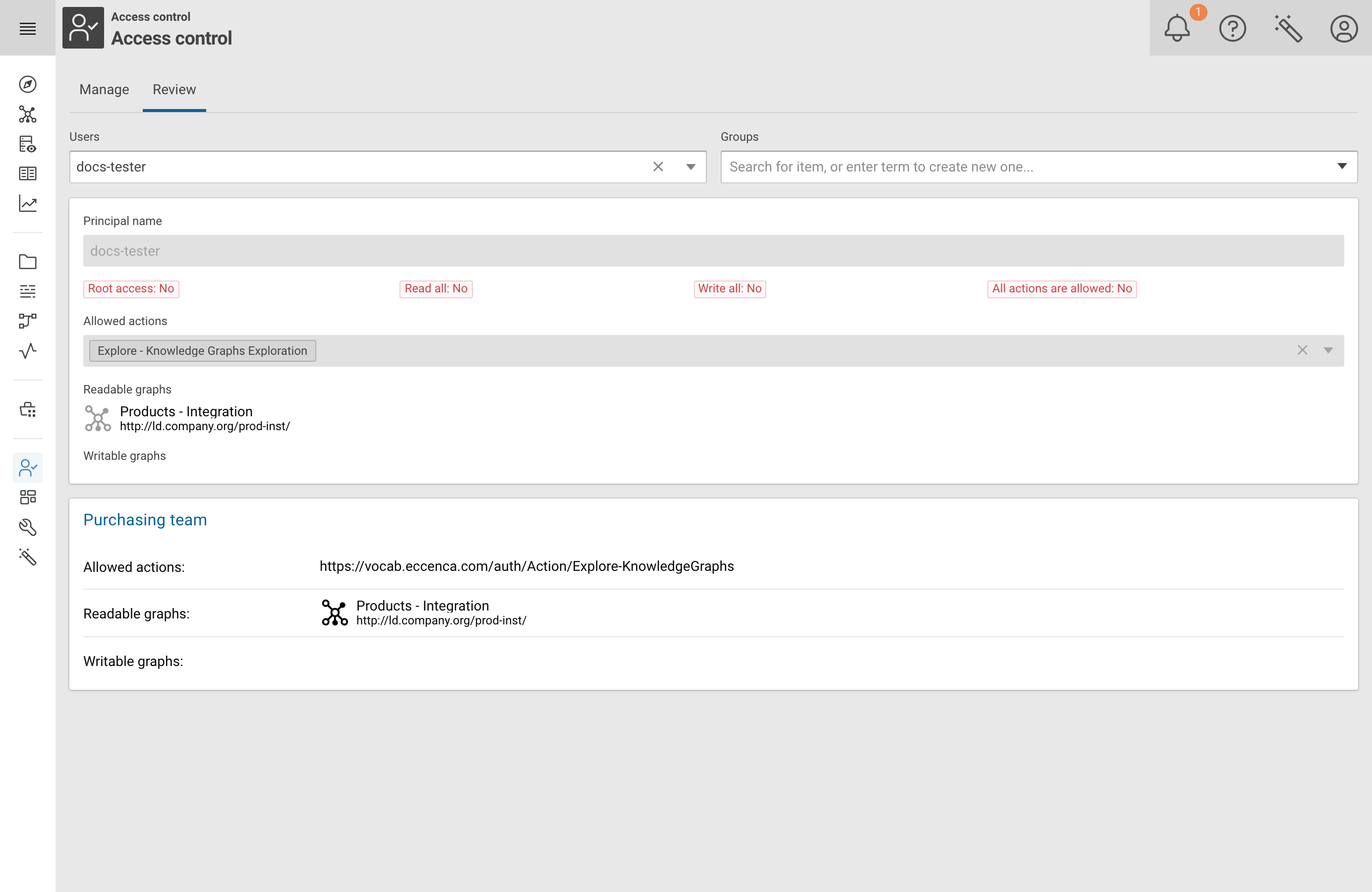
- Select the Review tab.
- Select an account in Users. The review starts once an account is selected.
- Optionally, enter groups in Groups, to review the account as a member of these groups. Enter the name of a group and select Create new item.
The upper part shows the effective rights:
- Root access, Read all, Write all and All actions are allowed
- Allowed actions
- Readable graphs and Writable graphs
Below, each access condition that applies to the account is listed with its Allowed actions, Readable graphs and Writable graphs.
Related¤
- Access conditions: the attributes of an access condition, dynamic access conditions and typical use cases
cmemc admin acl: manage and review access conditions on the command line